
Adding Links and Call-to-Actions to Your Profile
Add social media links and customizable Call-to-Action buttons to your OMR Reviews profile to direct seekers to your website or landing pages
How to optimize your OMR Reviews profile: integrate links and Call-to-Actions (CTA) buttons
To give software seekers the chance to get in touch with you, you can add multiple links to your OMR Reviews profile. With the Essential package alone, you already have the option to link all your social media channels and your website, as well as use a Call-to-Action button to your contact form in your profile. Starting with the Advanced and Professional packages, you'll get a second CTA button as a customizable click-out on your profile and on category pages.
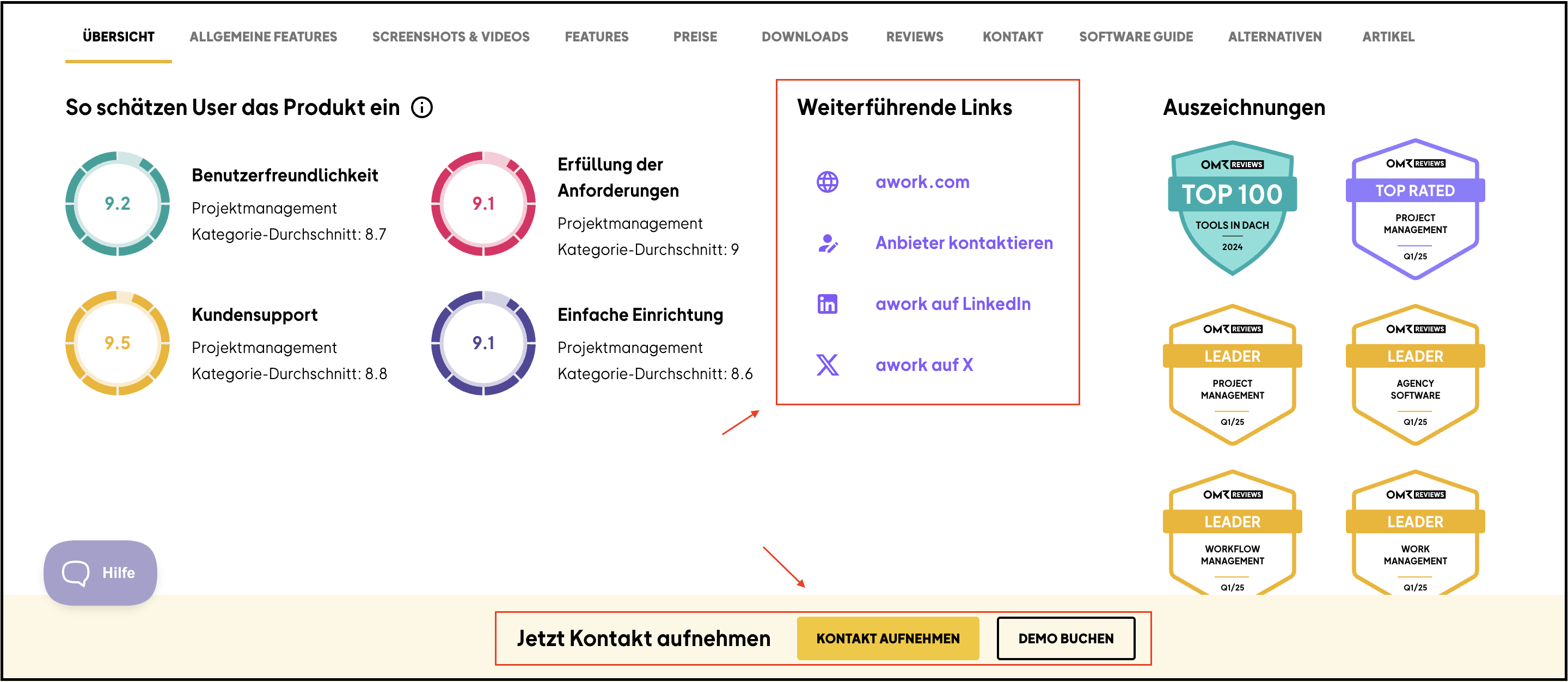
Use your customizable CTA button for context-specific landing pages to target users effectively. Context-specific landing pages are specially tailored to the needs and interests of your visitors, based on their source or the content they viewed previously. They offer customized information that directly matches what your users are looking for, preventing distractions from irrelevant content. Through this precise targeting, visitors can find the right information for them faster and complete their desired action (for example, signing up or making a purchase) more efficiently.
Step 1
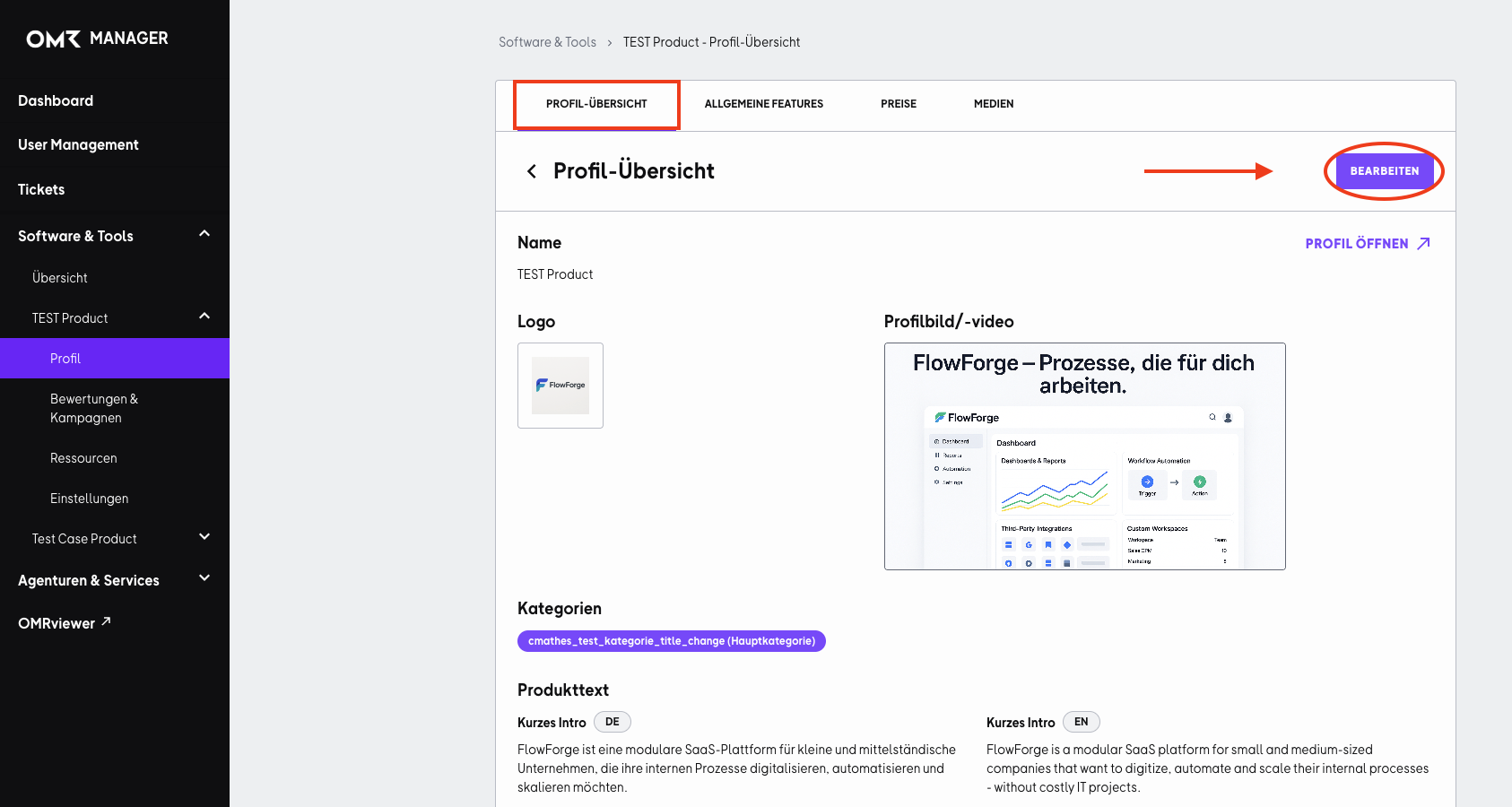
To get started with editing, log in to your OMR Manager account, click the "Edit" button in the "Profile Overview" section, and then scroll down.
Step 2
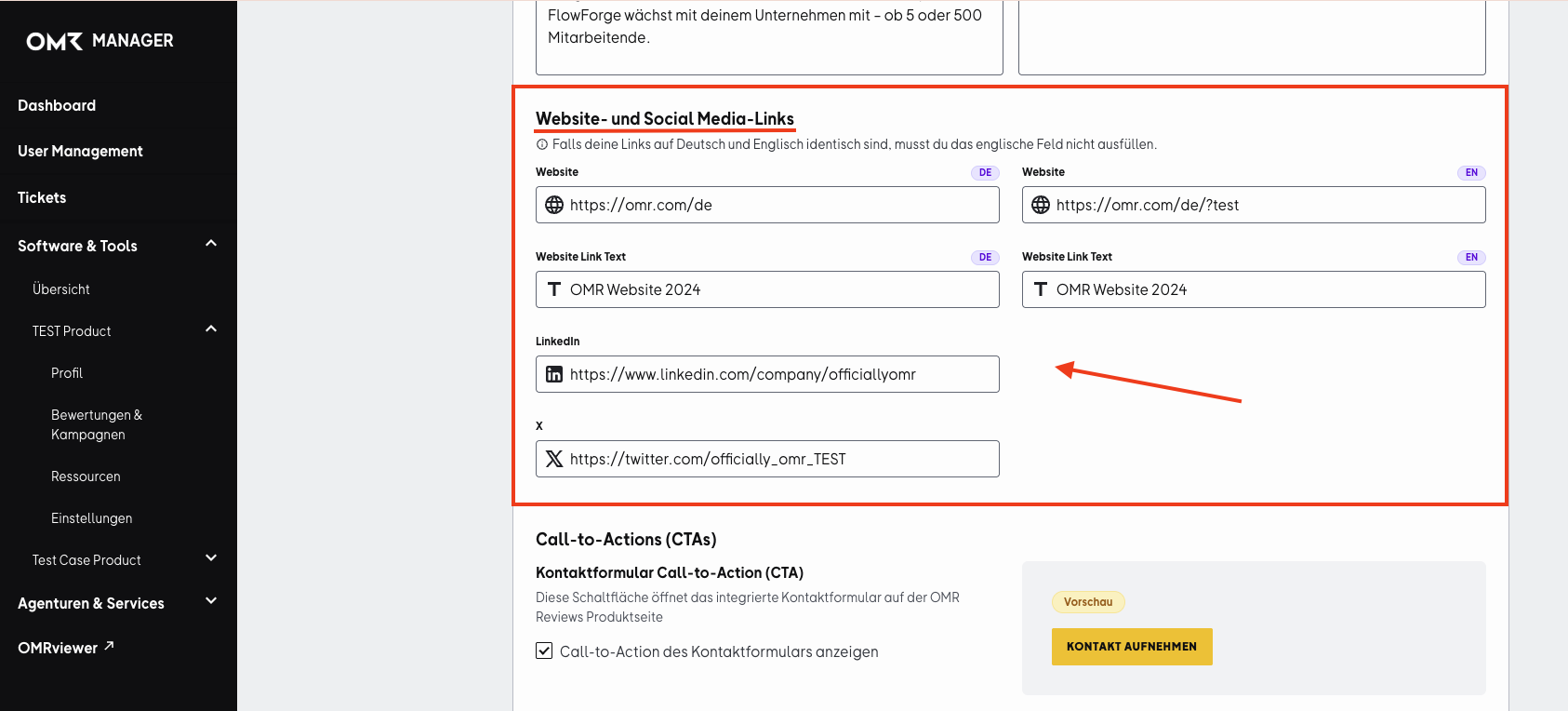
First, enter the corresponding links in the "Website and Social Media Links" section and then continue scrolling down.
Step 3
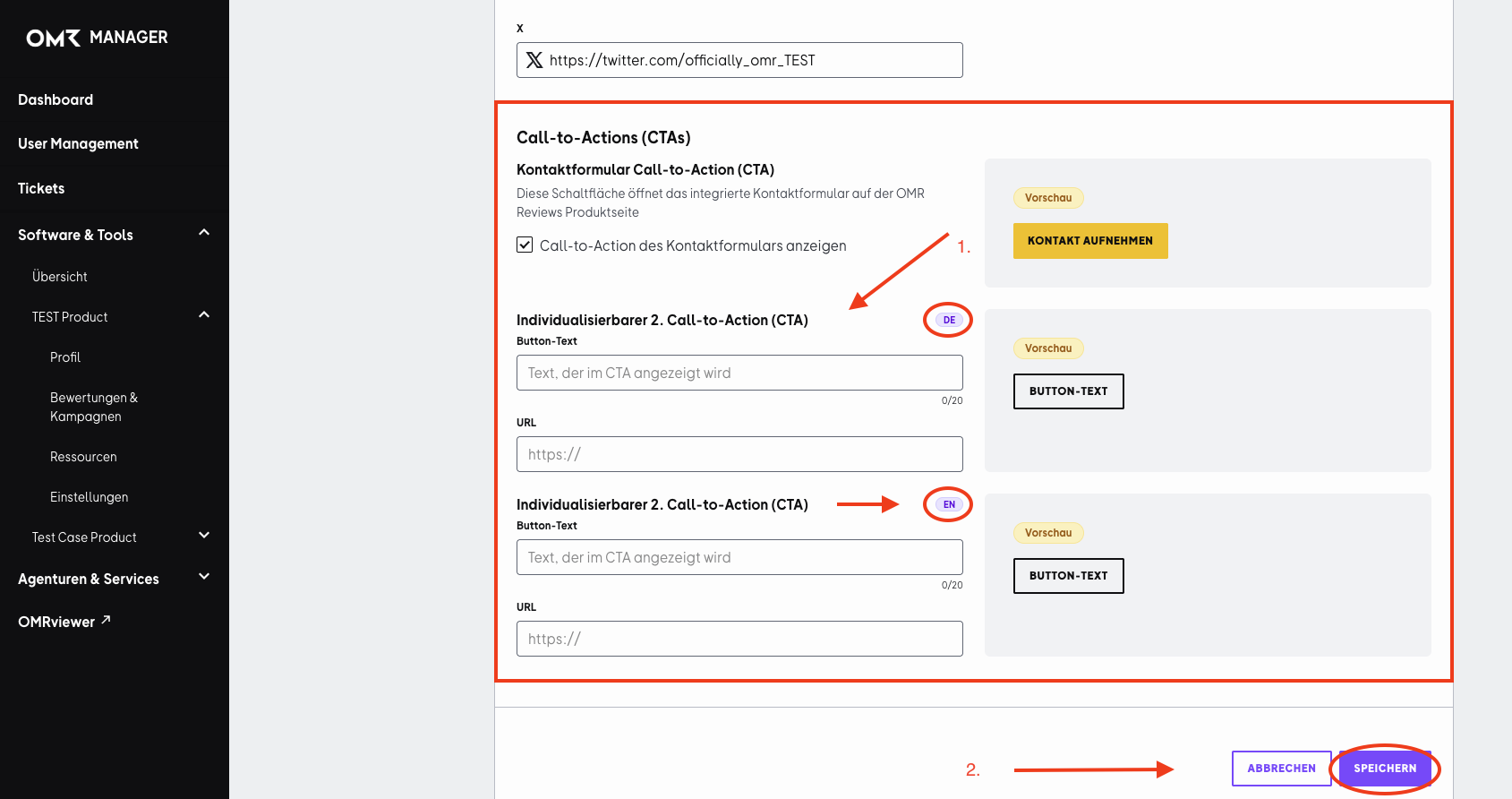
In the next section "Call-to-Actions (CTAs)", you can create the second CTA button. Remember to provide an English version alongside the German version. On the right side, you'll find a preview of your CTA button. Finally, click the "Save" button in the lower right corner.
 Powered by happysupport.ai