
Profile Categories in OMR Manager
View your product's assigned categories in OMR Manager's Profile Overview to understand how your solution is categorized on OMR Reviews
Visibility and Management of Profile Categories on OMR Reviews
Profile categories show which categories your product is listed in on OMR Reviews. They help users get a quicker understanding of your solution and at the same time provide additional internal linking on the platform (SEO and discoverability benefits).
Where can you find profile categories in OMR Manager?
In the OMR Manager, you can see your assigned categories directly in your product profile:
-
Log in to your OMR Manager account
-
Go to the Profile Overview
-
Scroll to the Categories section
-
There you'll see the main category as well as any other assigned categories
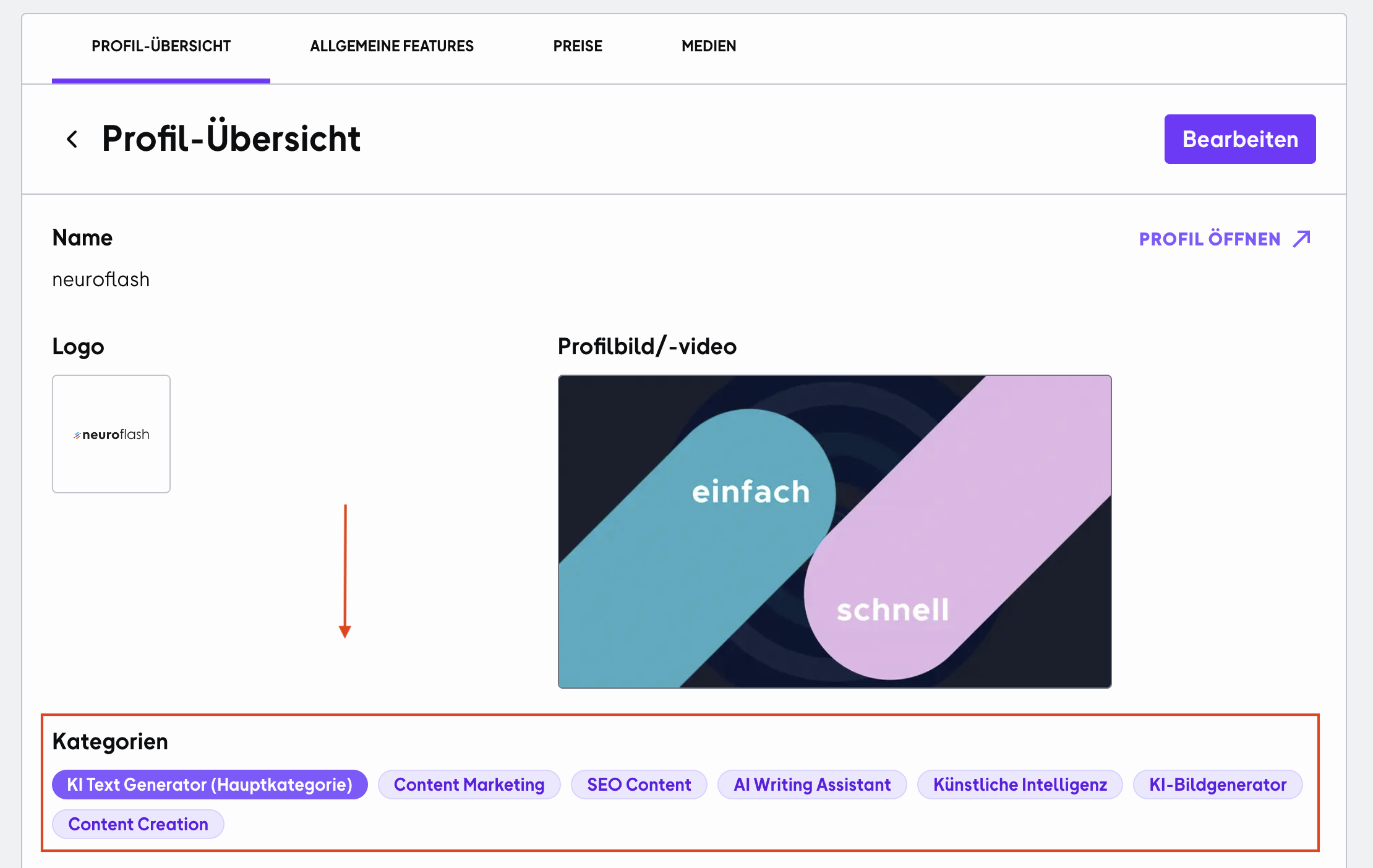
Where are the categories displayed on your product profile?
On your public product profile, the categories are displayed at the top of the profile as clickable category labels.
These are linked and take users directly to the respective category overviews, where they can find other suitable tools and providers.
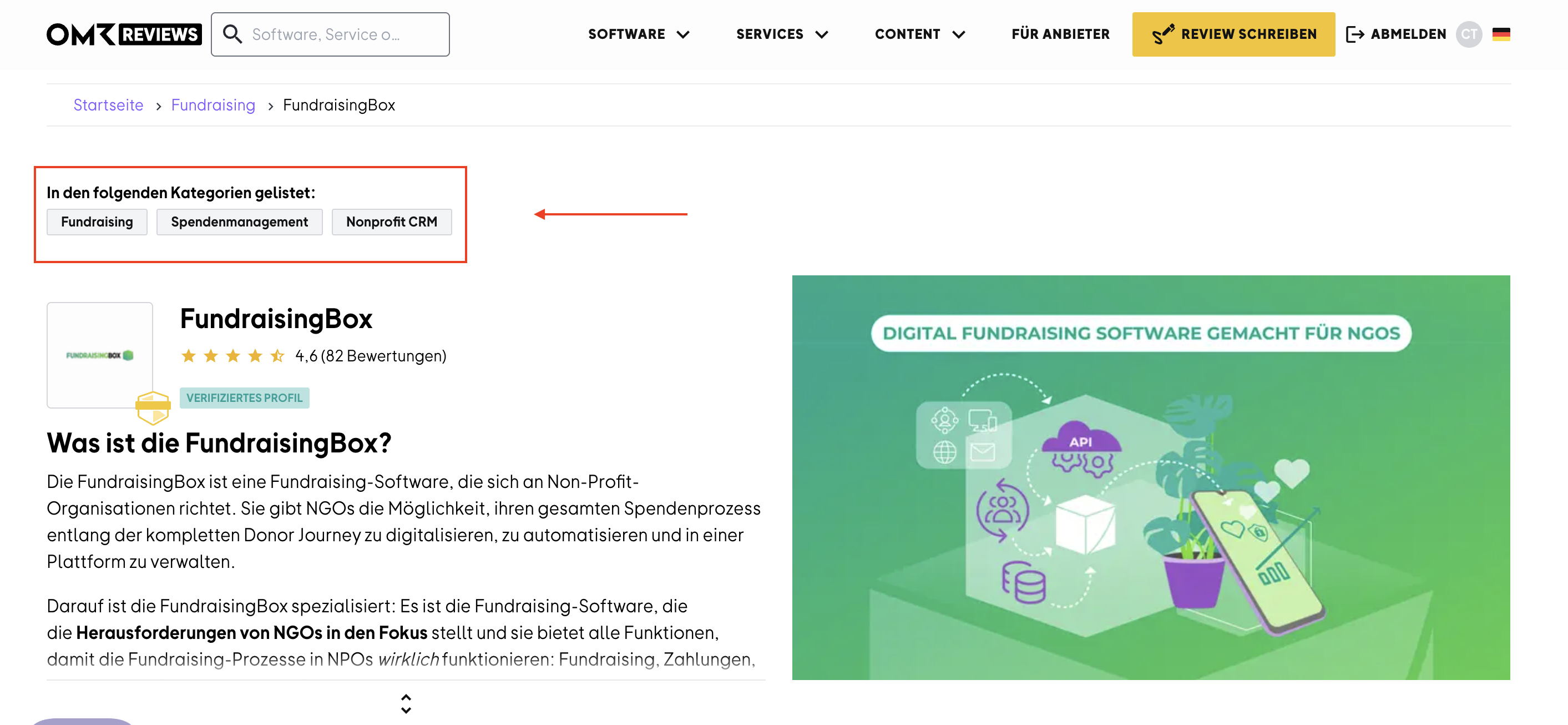 )
)
In what order are the categories displayed?
Categories are displayed according to a fixed logic:
-
(1) Main category first
-
(2) Additional categories after that in the order they were assigned to your product
This way, your most important categorization is always visible at first glance, while additional categories provide further orientation.
Want your product listed in additional or different categories or removed from categories that don't apply?
If you'd like your product to be listed in additional or different categories or removed from categories that don't apply, please reach out to our Customer Success team (cs-reviews@omr.com).
 Powered by happysupport.ai