
Identifying and Updating Outdated Reviews in the OMR Manager
Identify outdated reviews older than 12 months in the OMR Manager tab and invite reviewers to update them for better ranking visibility
How to update outdated reviews in the OMR Manager
What you'll find in this article 👇
-
Why current reviews matter
-
Where to find outdated reviews
-
Inviting reviewers to update their reviews
-
Using pre-written messages directly in the OMR Manager
-
Reminder limits and restrictions
-
When an update request is particularly worthwhile
-
Frequently asked questions
Reviews older than 12 months often no longer reflect the current state of your product or user experience. At the same time, older reviews carry less weight in the ranking algorithm. That's especially unfortunate when you have very positive feedback that truly represents your product well.
To help you identify these reviews faster, the OMR Manager displays outdated reviews in a dedicated tab. There you can check which reviews should be updated and invite reviewers directly to revise their existing reviews.
👉 Learn more about how tools are ranked within a category
A profile with many old reviews can rank worse than a competitor profile with fewer but more recent reviews, even if the older reviews are very positive.
Why current reviews matter
Reviews on OMR Reviews directly influence how a tool ranks within its category. Reviews older than 12 months carry less weight in the overall ranking. This means a provider with many old reviews can rank lower than a competitor with fewer but more recent reviews.
Current reviews bring benefits for everyone involved:
Who
Benefit
Provider
Higher ranking in the category and more visibility to potential buyers
Buyers
More relevant and trustworthy feedback that reflects the current state of the product
OMR Reviews
Higher data quality and greater credibility on the platform
A review is considered outdated if its publication date is older than 12 months. Outdated reviews are not deleted. They remain visible on your profile but flow into the OMR Score with reduced weight until they're updated.
Where to find outdated reviews
You'll find outdated reviews in the OMR Manager under:
Event Manager - Reviews - Overview - "Outdated Reviews" tab
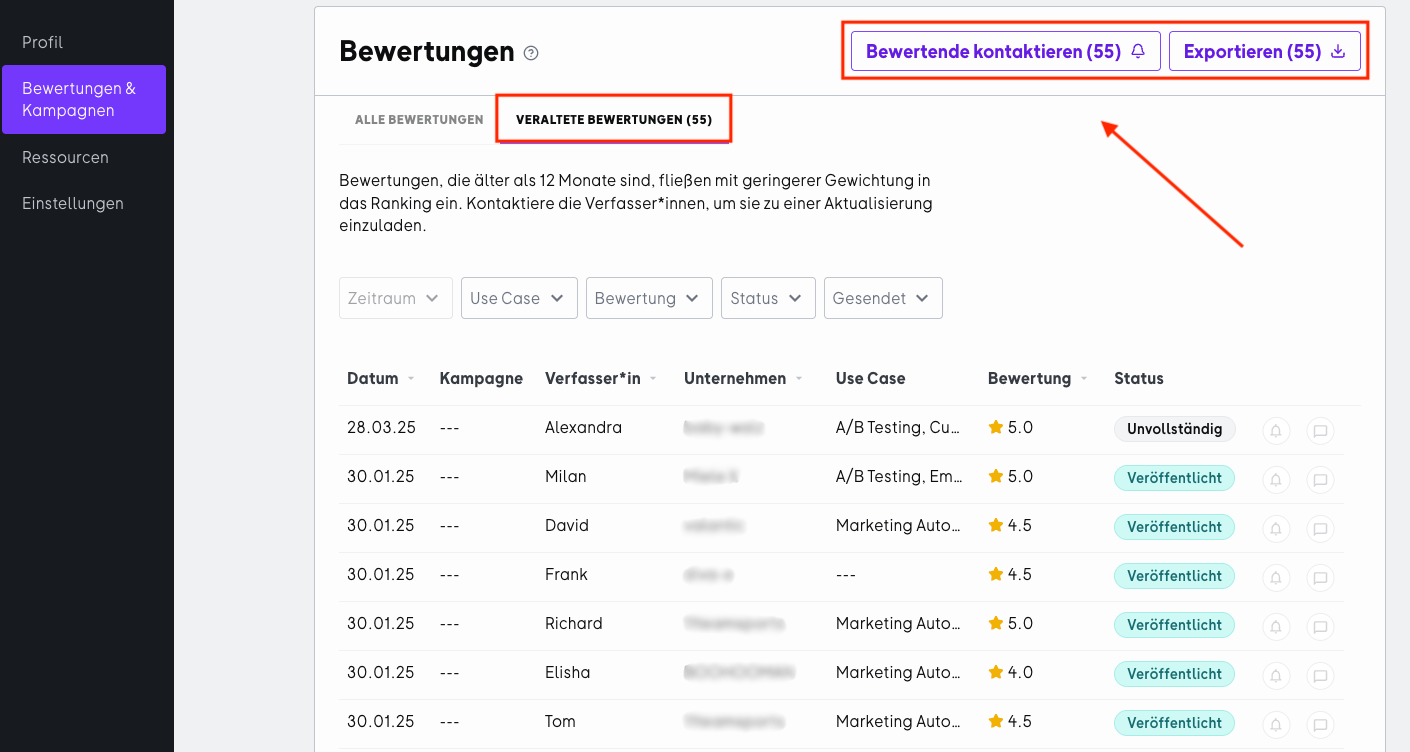
This tab displays all reviews older than 12 months in one place. You can also narrow down the overview using various filters, such as:
-
Use case
-
Rating
-
Status
-
Reminder sent / not sent
This lets you identify particularly relevant reviews more quickly.
Important to know:
-
The number of displayed reviews updates dynamically when you apply filters.
-
The time period filter is disabled in the "Outdated Reviews" tab because it always shows all reviews older than 12 months.
Inviting reviewers to update their reviews
The OMR Manager has a feature for outdated reviews that lets you contact reviewers directly and ask them to update their existing review.
Instead of only collecting new reviews, you can also have existing feedback updated if something has changed since the original review or if the review no longer reflects the current state. This makes sense, for example, if your software has improved significantly or if the use case has changed.
After a successful update, the review flows directly back into the OMR Score and can affect your ranking on OMR Reviews.
How to invite reviewers to update their review
Step 1: Switch to the "Outdated Reviews" tab
The "Contact reviewers" button is only active in the "Outdated Reviews" tab. In the "All Reviews" tab it's disabled.
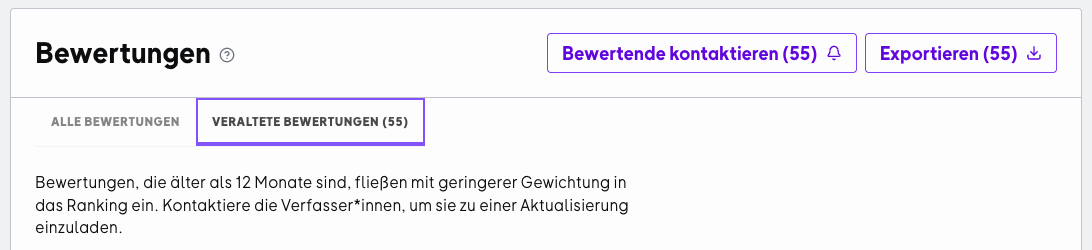
Step 2: Click on "Contact reviewers"
The button appears in the top right of the table next to the export button. It shows the number of reviewers who haven't been contacted yet, for example: "Contact reviewers (4)". You can contact all of them at once in the next step.
The button is disabled when the counter shows 0. In this case, all relevant reviewers have already been contacted.
Step 3: Confirm in the send dialog
After clicking, a dialog opens with:
-
a heading and description of the request
-
a message preview of the reminder email
-
a "Send me a copy" checkbox
-
an X button to close the dialog without sending
After your confirmation, a reminder email is sent to all relevant reviewers at the same time.
For a review to be updated, it needs to have at least one substantive change. Simply confirming the previous statement without any modifications isn't enough.
Using pre-written messages directly in the OMR Manager
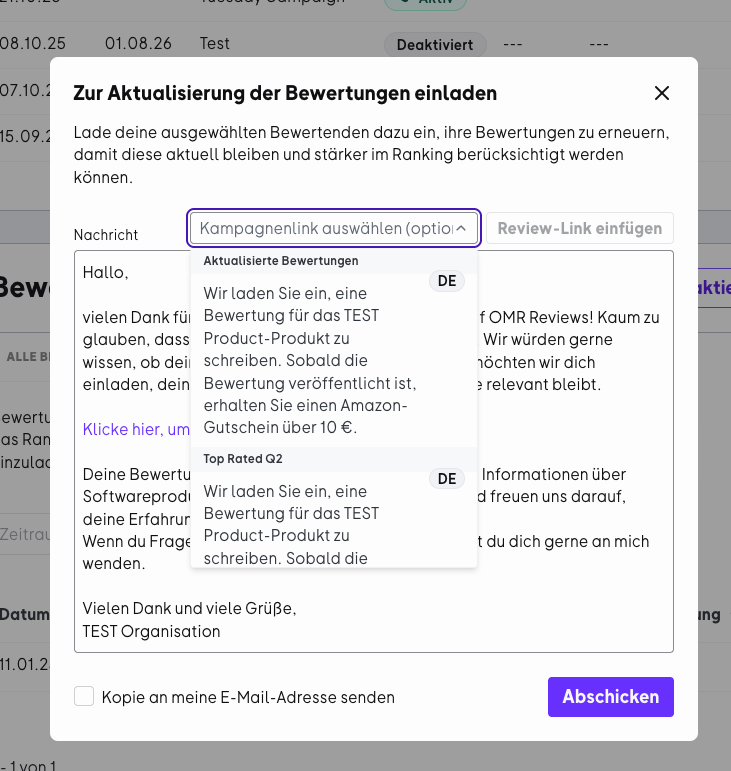
When you send an update request, you don't have to start from scratch. The OMR Manager already has a pre-written message template you can use directly.
This template helps you reach out to reviewers quickly and easily. You can customize the text as needed to make the context more specific for your customers.
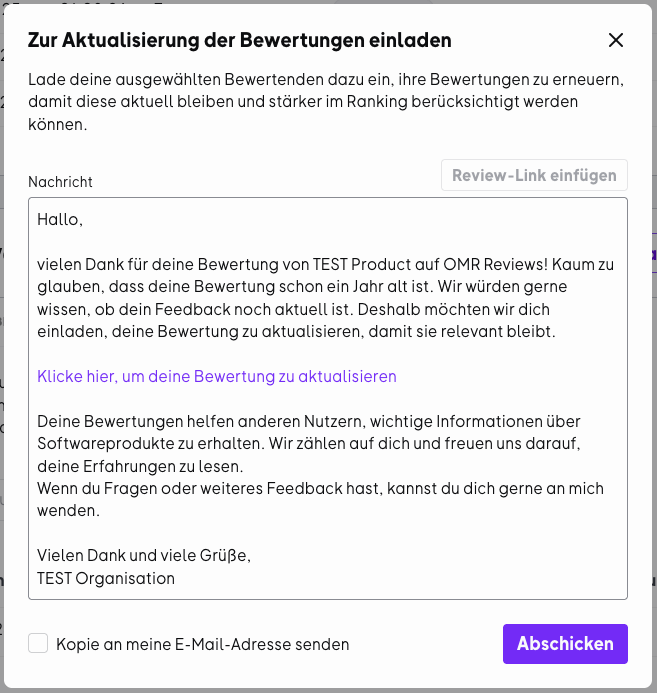
You can also select incentivized campaign links here to motivate reviewers with an incentive to update their review.
)
Reminder limits and restrictions
The following limits apply to reminders for updating outdated reviews:
Restriction
Value
Max. reminders per review
3 total
Minimum interval between reminders
45 days
Reviewers whose review has reached the maximum number of reminders won't be included in future batch sends.
Also, a notification icon in the review row shows you the current status of a review, for example:
-
Reviewer has already been contacted, next invitation possible in X days
-
Maximum number of invitations reached
When an update request is particularly worthwhile
An update request is particularly worthwhile when something has changed since the original review, for example:
-
new or improved features
-
a changed use case
-
noticeable improvements in support or onboarding
-
new experiences in day-to-day use of the tool
The more concrete the reason, the more understandable the request will seem to the reviewer and the more likely you'll get a helpful update.
Frequently asked questions
What counts as an outdated review?
Reviews whose publication date is older than 12 months are considered outdated.
Can I contact reviewers directly from the OMR Manager?
Yes. For outdated reviews, you can invite reviewers directly through the OMR Manager to update their existing review.
Does the review need to change in an update?
Yes. For a review to be updated, it needs to have at least one substantive change.
Is there a message template for the request?
Yes. The OMR Manager already has a pre-written message that you can use directly and customize as needed.
Why is the "Contact reviewers" button grayed out?
Either you're in the "All Reviews" tab and need to switch to the "Outdated Reviews" tab first, or all relevant reviewers have already been contacted.
What do I do if a reviewer didn't receive the email?
Check the notification icon in the review row. There you can see when the next reminder is possible. Also ask the reviewer to check their spam folder.
Can I remind just one individual reviewer?
The batch invitation contacts all relevant reviewers at the same time. For individual reminders, please use the reminder process in the detail view of the specific review.
Why does the number of outdated reviews change after applying a filter?
The number always reflects the currently filtered view. As soon as you apply filters, the number updates accordingly.
Are outdated reviews deleted?
No. They remain visible on your profile but carry less weight in the ranking until they're updated.
Current reviews make your profile more informative and relevant to potential buyers. The outdated reviews tab helps you keep track of older reviews and update them systematically.
This strengthens your profile quality with feedback that better matches the current state of your product and can positively impact your OMR Score and ranking.
 Powered by happysupport.ai