
OMR Reviews Badges in the OMR Manager
Display OMR Reviews Badges on your website using OMR Manager to showcase awards and build customer trust with independent third-party recognition
Show your badges right on your website and build trust with potential customers.
Has your software won an award? Great! Show it to the world. With OMR Reviews Badges, you can turn positive user feedback into a powerful marketing tool. Keep track of your awards right in the OMR Manager and use them strategically in your marketing mix.
In this article, you’ll find 👇
- What are OMR Reviews Badges?
- What badges are available?
- How your product can earn badges
- How to find your badges in the OMR Manager
- How to add badges to your website
What are OMR Reviews Badges?
OMR Reviews Badges are digital awards for software products listed on OMR Reviews. They’re based on reviews from real users and show potential customers at a glance that your product stands out in its category.
Badges work like a seal of approval: they build trust, set you apart from your competitors, and strengthen your brand. You can easily use them on your website, in presentations, or on social media.
OMR Reviews Badges are a valuable marketing asset because they:
- Build trust and strengthen your brand:
As an award from an independent platform, a badge confirms the quality of your offering to potential customers. - Clearly set you apart:
Use the badge as a visible unique selling point to stand out from the competition. - Increase conversion rates:
Trust signals such as badges reduce barriers to purchase and have been shown to lead to higher conversion rates on your website. - Strengthen your social proof:
Real user reviews in the form of a badge feel more authentic than testimonials you’ve written yourself and provide social validation.
What badges are available?
Your product can earn different badges on OMR Reviews based on a range of criteria.
This overview lists all OMR Reviews Badges, along with articles with more details about each award.
How your product can earn badges
Badges are awarded based on reviews that real users submit for your product on OMR Reviews. The most important factors are:
✅ Number of reviews
A solid base of reviews is essential. The more reviews you collect, the more representative the overall feedback will be, and the better your chances of earning an award.
✅ Quality of reviews
Positive user experiences and your average rating are important factors in earning badges.
✅ How recent the reviews are
Recent reviews show that your product is relevant and up to date. That’s why the OMR Score gives slightly more weight to recent reviews.
➡️ Tip: Run review campaigns to collect more high-quality reviews and increase your chances of earning badges.
How to find your badges in the OMR Manager
Your OMR Reviews Badges are available in the OMR Manager under “Ressourcen” at the beginning of each quarter. From there, you can download your badges in the format that best suits your needs, either as HTML code for quickly adding them to your website or as a PNG/SVG file for design and marketing materials.
We recommend:
-
HTML code for your website, such as product pages, pricing pages, footers, or comparison pages
-
PNG/SVG for presentations, one-pagers, ads, social media, sales materials, and email signatures
Here’s how to access your badges:
-
Log in to the OMR Manager.
-
Click “Software & Tools” in the navigation bar on the left, then click your product.
-
Click “Ressourcen” in the navigation bar on the left, under your product.
-
Click the “Badges” tab at the top of the page.
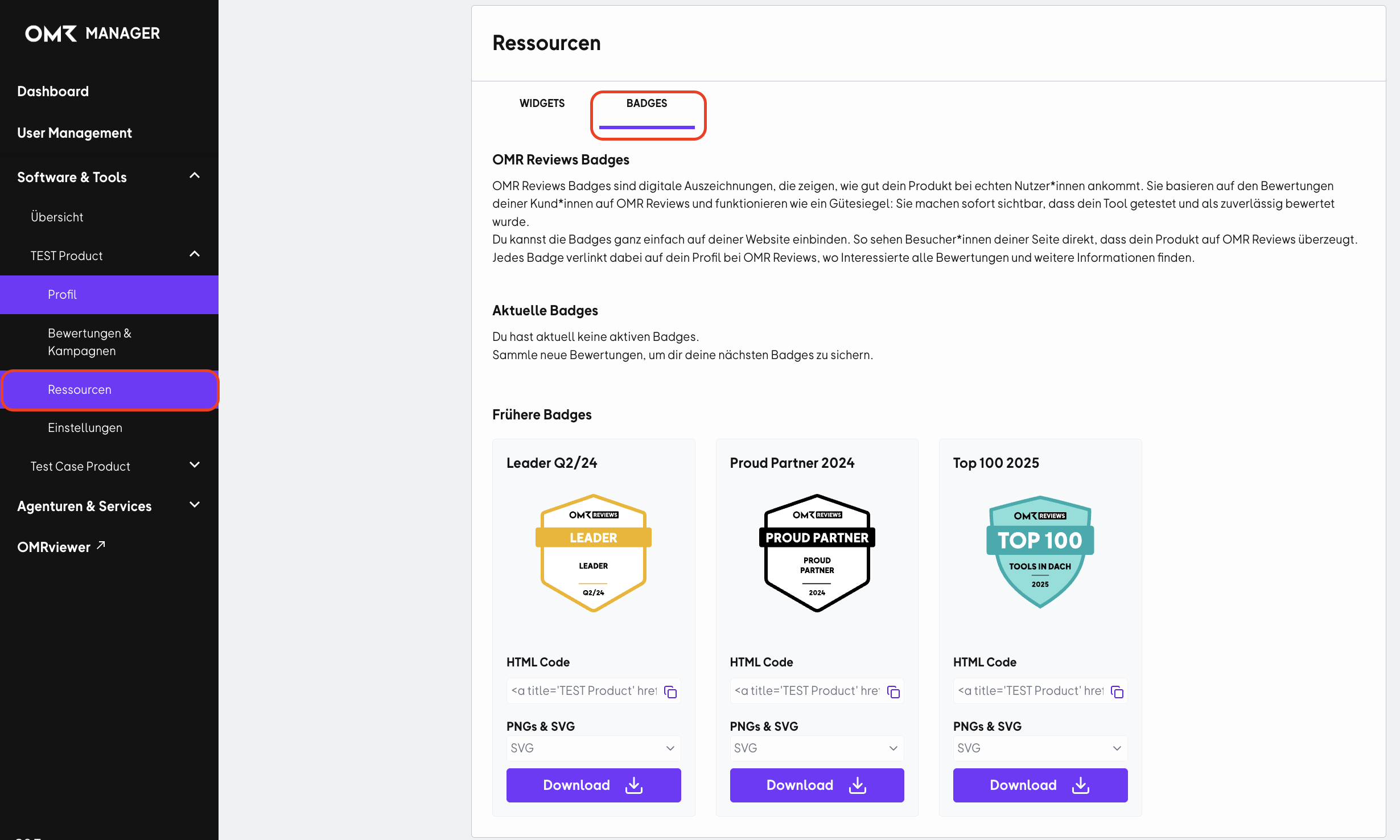
- Current awards
These reflect your latest achievements and how recent your reviews are. - Previous awards
Here, we archive all the badges you’ve earned in the past so you can access them at any time. They show your continued presence and positive progress on OMR Reviews.
If your product has earned badges across several quarters, highlight this consistent performance in your marketing mix. This puts the ongoing customer feedback and social proof front and center, building even more trust with potential customers.
Downloading badges is easy
Once you’re on the Badges page, you can download each award as a high-resolution image file or a code snippet. You’ll find a download button next to each badge, which lets you download your badges in different formats:
OMR Reviews Badges as an HTML widget
The HTML code provided in the OMR Manager already includes a link to your OMR Reviews product profile. This is not only convenient for visitors, but also gives you strategic advantages:
-
An SEO signal from a high-quality, relevant link:
Search engines treat links as signals of relevance and trust. Linking to an established review source helps search engines understand your product in the right context. -
More visibility in AI-powered search and answer systems (GEO / AI Visibility):
AI systems such as ChatGPT, Gemini, and Perplexity increasingly rely on structured web signals, reviews, and connected entities to better understand brands and mention them in relevant answers. If your website includes high-quality, contextually relevant links, such as a link to your OMR Reviews profile, you strengthen the semantic connection between your brand, your category (such as “Billing”), and a trusted source. This can help your brand get picked up more effectively in AI Knowledge Graphs and increase your visibility in AI-generated results.
Here’s how it works:
-
Copy the provided code snippet with a single click.
-
Paste the code where you want it in your website’s HTML, such as on your homepage, a product page, or in your website footer.
Note
Please don’t edit the code snippet. This is the only way we can ensure that the badge displays correctly and the link to your OMR Reviews profile works properly.
OMR Reviews Badges as image files
If you want to match your badge precisely to your design, downloading it as a separate image file is the best option. We offer two file types:
-
PNG file
These image files are available in several standard sizes, such as 500 px, 1,000 px, and 2,000 px. They’re perfect for most digital applications. -
SVG file
This is a scalable vector format, which means you can resize the file as much as you like without losing quality. It’s the best choice for professional design and print applications.
Tip
Use the PNG file with a transparent background on your website and in digital media, such as social media and presentations. Use the SVG file (vector format) whenever you need the badge for high-quality print materials such as flyers, brochures, or exhibition walls.
 Powered by happysupport.ai