
Using and Filtering Event Types in OMRviewer
Filter OMRviewer by Event Types—Low, Mid, and High Intent signals—to identify companies that viewed pricing or submitted forms for targeted outreach.
Event Types: Filter by specific activities and identify valuable signals for marketing and sales.
With Event Types, you can filter in OMRviewer for very specific interactions that companies have performed on OMR Reviews (for example, whether someone viewed your pricing page, downloaded a document, or submitted a contact form).
This way, you'll spot detailed purchase and research signals and can use this information for your marketing and sales activities.
What you'll find in this article 👇
-
What event types are available?
-
How to use specific events
-
Filter strategies with event types
What event types are available?
The event types in OMRviewer can be divided into three categories based on purchase intent signal strength: Low, Mid, and High Intent.
Low Intent - early research
These events show that a company is starting to explore a topic. They're great for ramping up awareness activities for these accounts.
Event Name
Description
Search executed
A search on OMR Reviews was started.
Scroll
Your profile was scrolled through.
Navigation used
A tab in the navigation bar on the profile was clicked.

)
Screenshot viewed
A screenshot in the "Screenshots & Videos" section was viewed.
Video watched
A video was started in the "Screenshots and Videos" section.
Video unmuted
A video in the "Screenshots and Videos" section was watched with sound.
Review read
Reviews on your profile were read.
Article click
An article in the "Content" section was clicked.
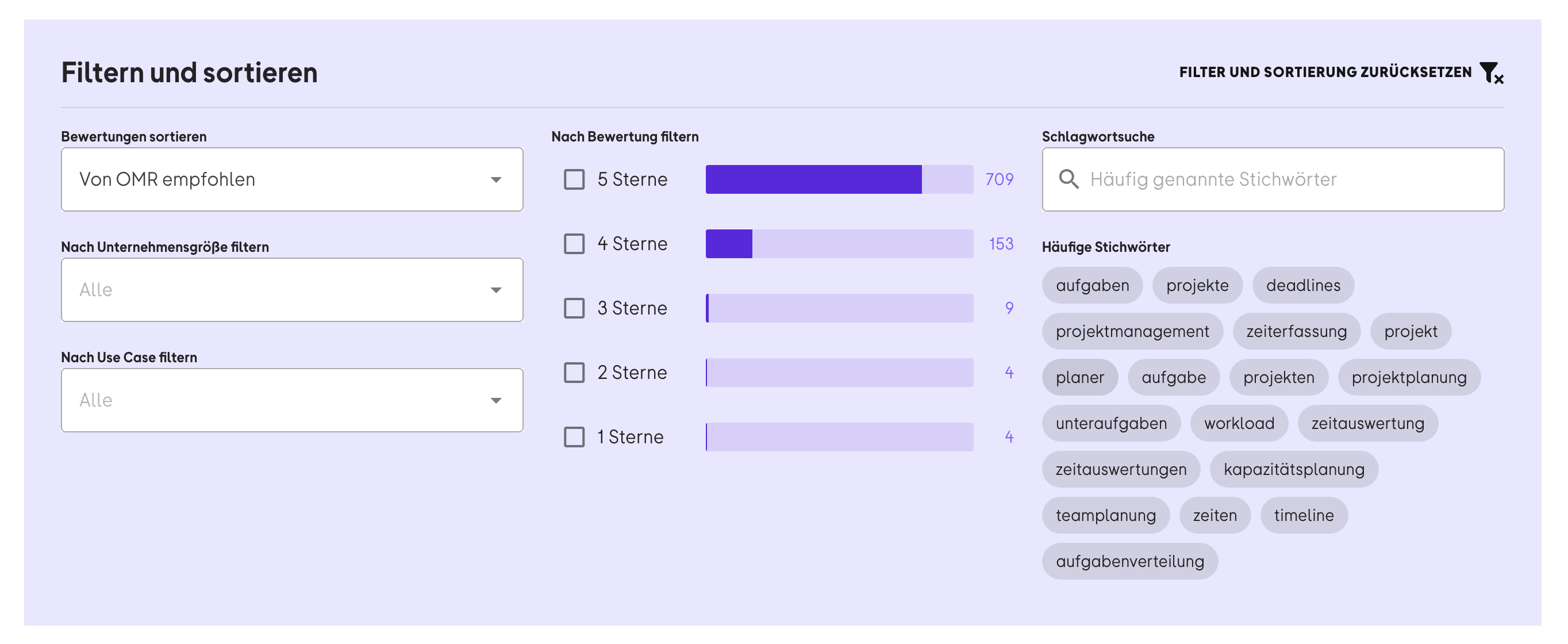
Filter used
A filter for reviews was applied.
)
Mid Intent - evaluation and comparison
These events show that a company is deepening their tool research. For instance, they're reading product descriptions or clicking on links like the website link. Or they're comparing providers by opening competitor profiles in the "Alternatives" section.
Event Name
Description
Description read
Product or agency description was expanded.
Alternatives click
"View all alternatives" CTA was clicked.
Provider website click
Link to provider website in the "Related Links" section was clicked.
Social media account click
Link to X or LinkedIn profile was clicked in the "Related Links" section.
Document viewed
A document in the "Downloads" section was clicked.
Pricing viewed
Pricing CTA was clicked.
High Intent - strong purchase readiness
These events indicate that a company is close to making a purchase decision. These accounts are ideal for direct outreach by your sales team.
Event Name
Description
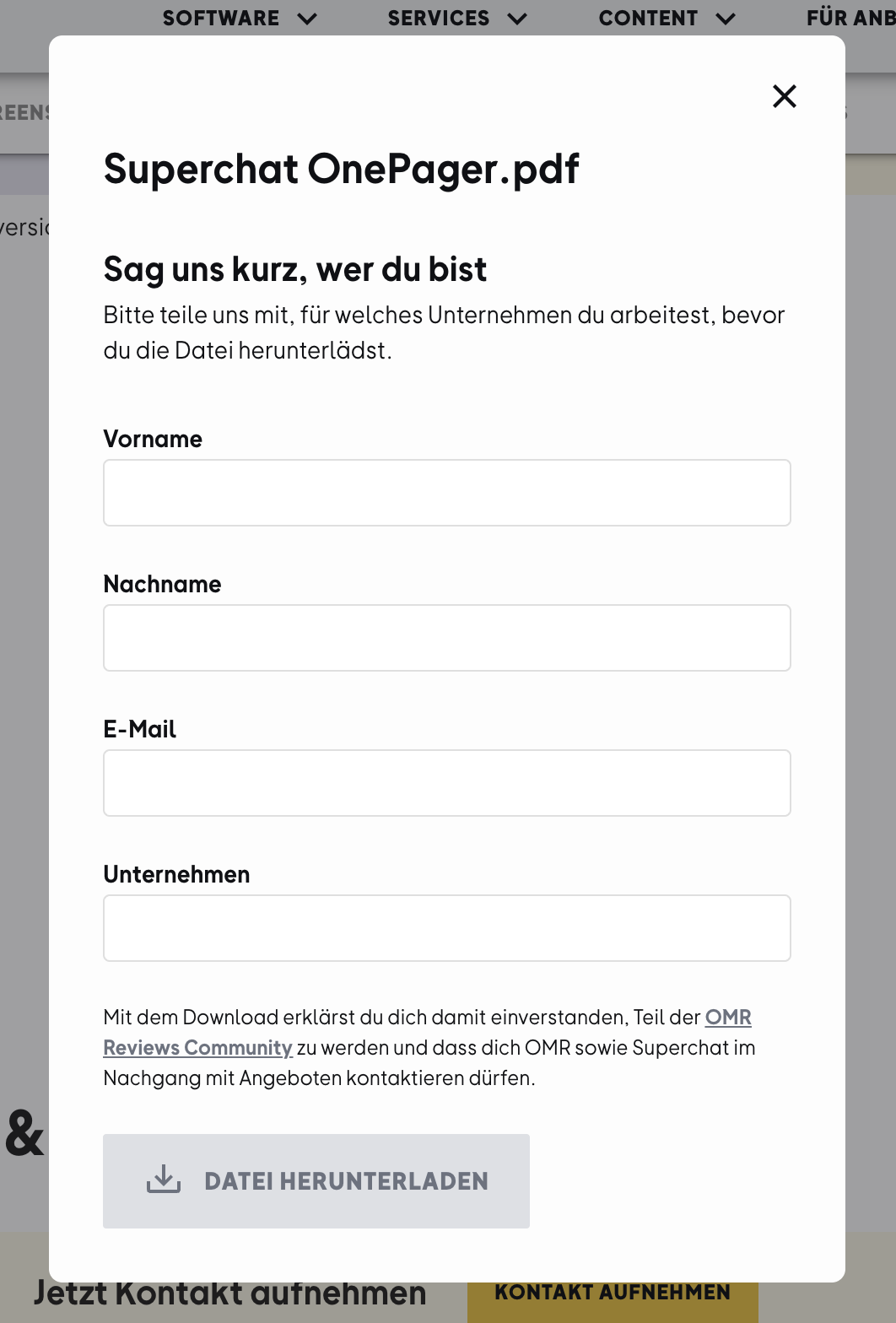
Document downloaded
Document download form was submitted via the "Download file" CTA.
)
Contact form click
"Get in touch" or "Request a quote" CTA was clicked.
Contact form submitted
Contact form was submitted.
Second CTA click
Click on a second custom CTA.
Start with a single event like "Pricing viewed" or "Document downloaded". This is the fastest way to find accounts that are likely to have purchase interest.
How to use custom events
-
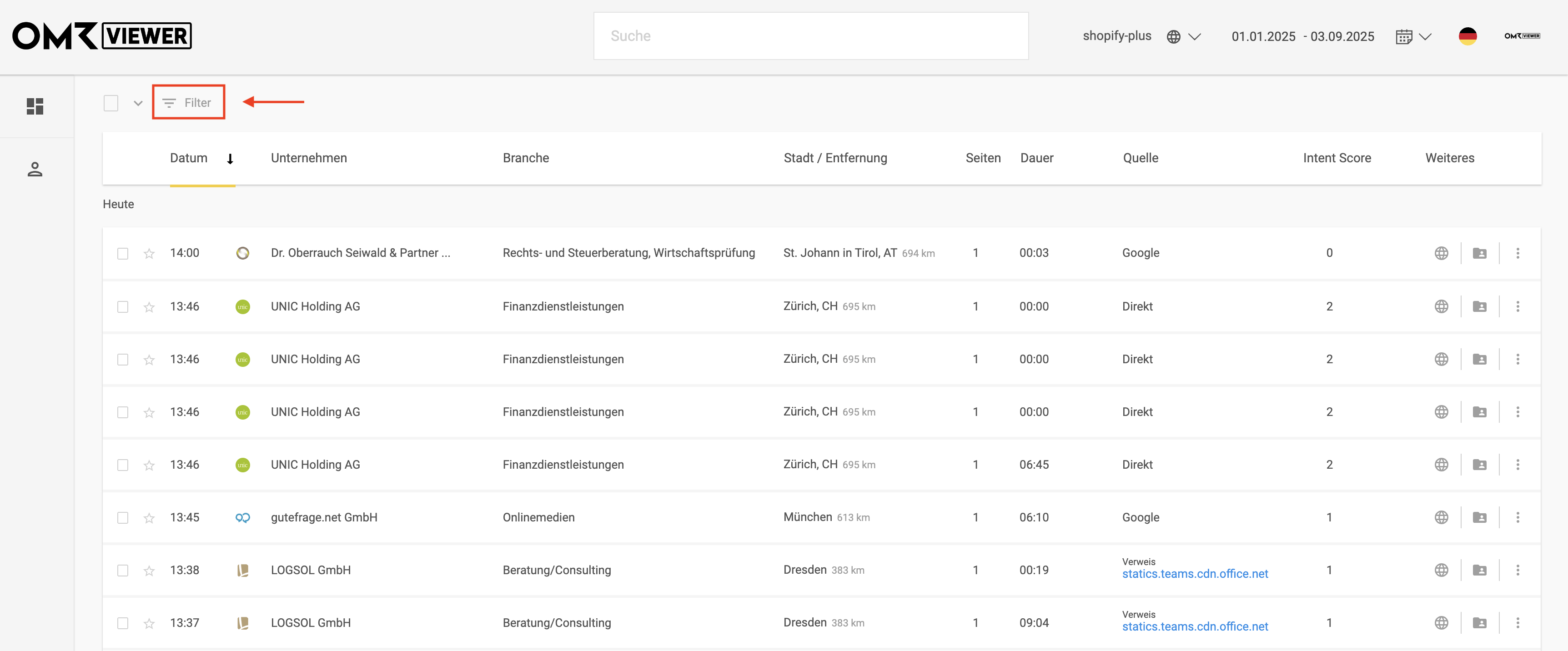
In OMRviewer, go to Companies, Sessions, or a Target Account List to access a list view of accounts.
-
Click on Filter in the top left corner.
)
-
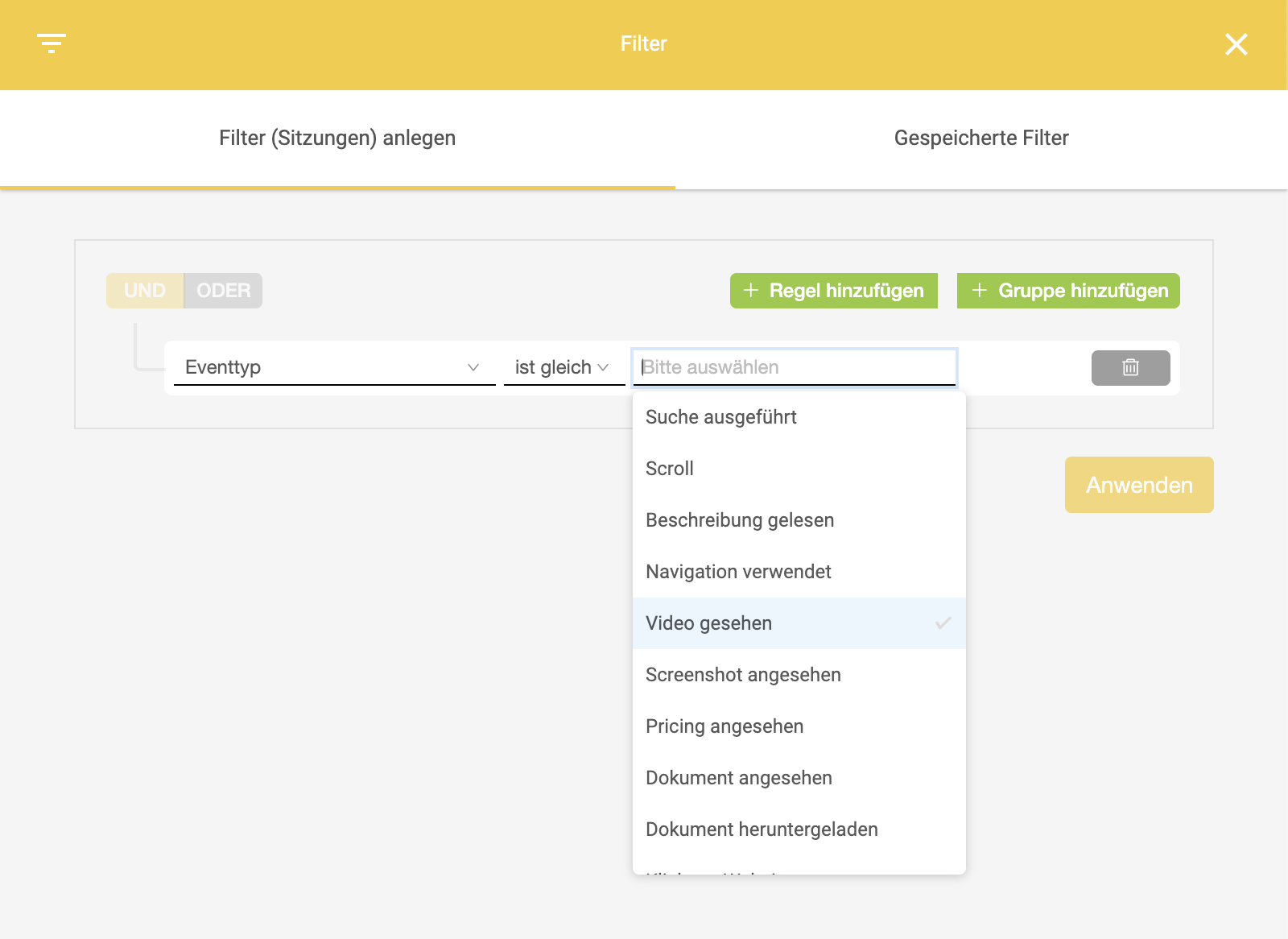
Select Event type from the dropdown.
-
A list of all available events will open.
-
You can select a single event or combine multiple events using the "+ Add rule" button, or include different events.
-
Important:
The more events you combine, the smaller your data set becomes. So think carefully about which combinations make real strategic sense for you, such as "Pricing viewed + Contact form opened".
)
-
-
Optionally set additional filters (such as industry, region, Intent Score) if your data set is too large.
-
Define a time period (we recommend the last 7-14 days to see fresh signals).
-
Click Apply to see your results.
-
Once you've created a good filter, don't forget to save it so you can find it again in the sidebar under your filter overview.
Start with High Intent events ("Pricing viewed", "Document downloaded", "Contact form submitted"). This way you'll immediately spot accounts that are in a concrete decision phase.
Filter strategies with event types
1. Identify near-purchase signals and use them in sales
-
Pricing viewed (time period last 14 days)
or
-
Document downloaded
or
-
Contact form opened
or
-
Contact form submitted
Result: a small number of highly qualified accounts for direct sales outreach.
2. Content-driven activation
-
Document viewed
or
-
Article click
or
-
Video watched
or
-
Screenshot viewed
Result: accounts that are diving deeper into your solution. Perfect for nurturing and follow-ups.
3. Account Based Marketing scenarios
Filter your Target Account Lists by custom events to track your target accounts' activities in greater detail.
Result: very small but extremely relevant lists. Perfect for personalized outreach sequences in ABM.
 Powered by happysupport.ai