
OMRviewer: Structure and Functions Explained
Analyze buyer intent data across sessions and companies using OMRviewer's dashboard filters and CRM integrations to identify high-intent prospects
Structure and analyze buyer intent data - from individual sessions to seamless integration into your CRM.
Table of Contents
- Home
- Sessions
- Companies
- Filters
- Integrations
Home
-Feb-18-2025-02-42-04-4967-PM)
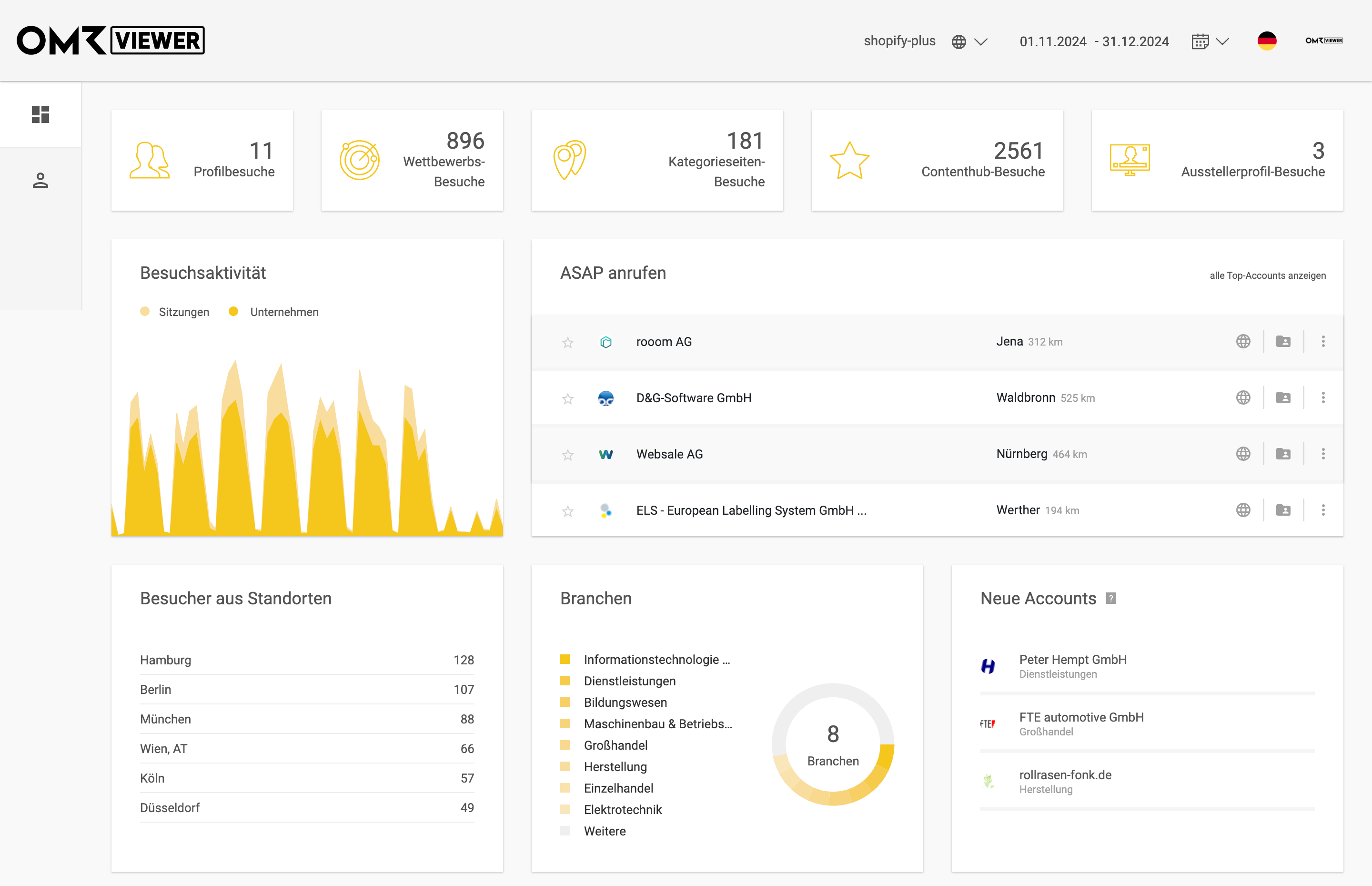
The overview shows you how many visits you've received over a specific time period and gives you information about potentially interested companies.
- Profile, Competitor, Category, ContentHub, and Exhibitor Profile Visits
Here you can see the total number of visits in the respective areas on OMR Reviews. This gives you a sense of how high the general interest in your company, your category, and related content currently is. - Call ASAP: This report shows you companies that have high purchase intent and should be contacted by you.
- Visit Activity
This chart shows you how many companies engaged with software solutions on which days. This way, you can identify patterns and potential entry points. - Visitors by Location
Find out in which cities interest in your solution is currently particularly high. - Industries
Here you get a sense of which sectors the identified accounts come from. A great foundation for sharpening your messaging even further. - New Accounts
This overview shows you which companies are engaging with your category or profile for the first time. Many of them are still at the beginning of their research and open to initial content-based insights.
Buyer intent data helps you not only acquire new customers, but also get to know and define your ICP more precisely.
Sessions
-Feb-18-2025-02-43-09-6002-PM)
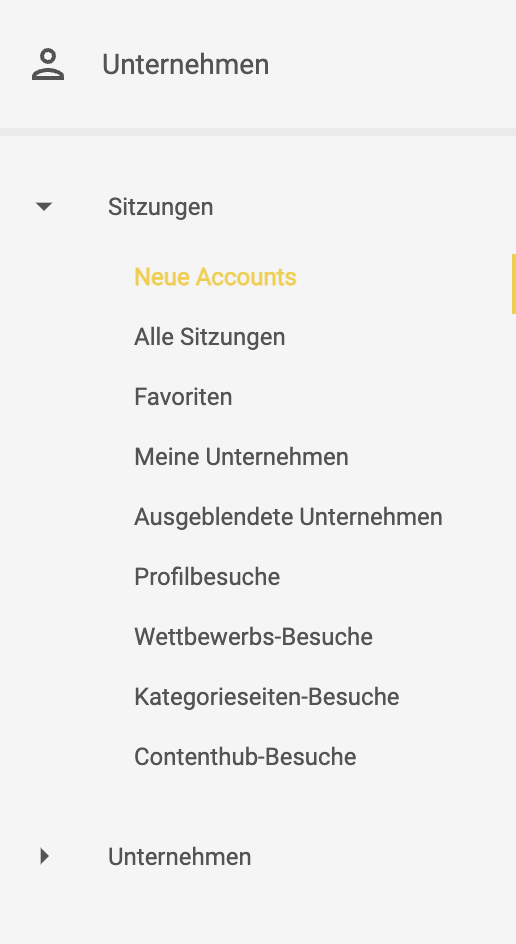
In the "Sessions" section, you'll find all touchpoints that have occurred with your profile, competitor profiles, category page visits, and ContentHub visits.
A company can trigger multiple sessions. In the "Sessions" section, it's therefore possible that companies are listed multiple times.
Companies
-Feb-18-2025-02-44-12-0995-PM)
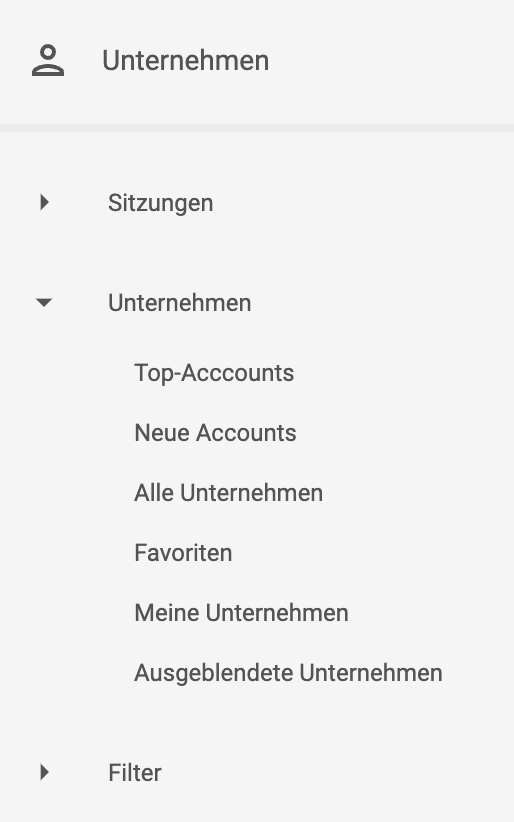
In the "Companies" section, you can see all identified accounts at a glance. Identify companies with high intent scores, discover new potential customers, and organize your data efficiently by marking accounts as favorites or excluding them from the list.
In the companies view, accounts appear as "Unique Visitors." This means that all sessions are consolidated and displayed per account.
Filters
-Feb-18-2025-02-45-33-8394-PM)
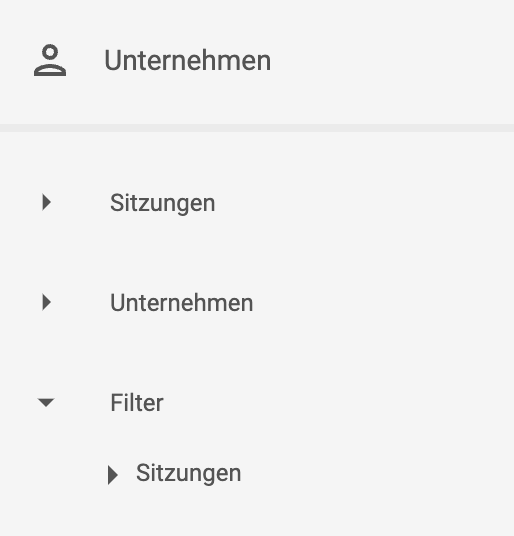
Under "Filters," you can view all your saved filters at both the session and company level. This feature allows you to search specifically for data that's relevant to you and quickly gain insights into your most important accounts and activities - without having to spend time searching.
Integrations
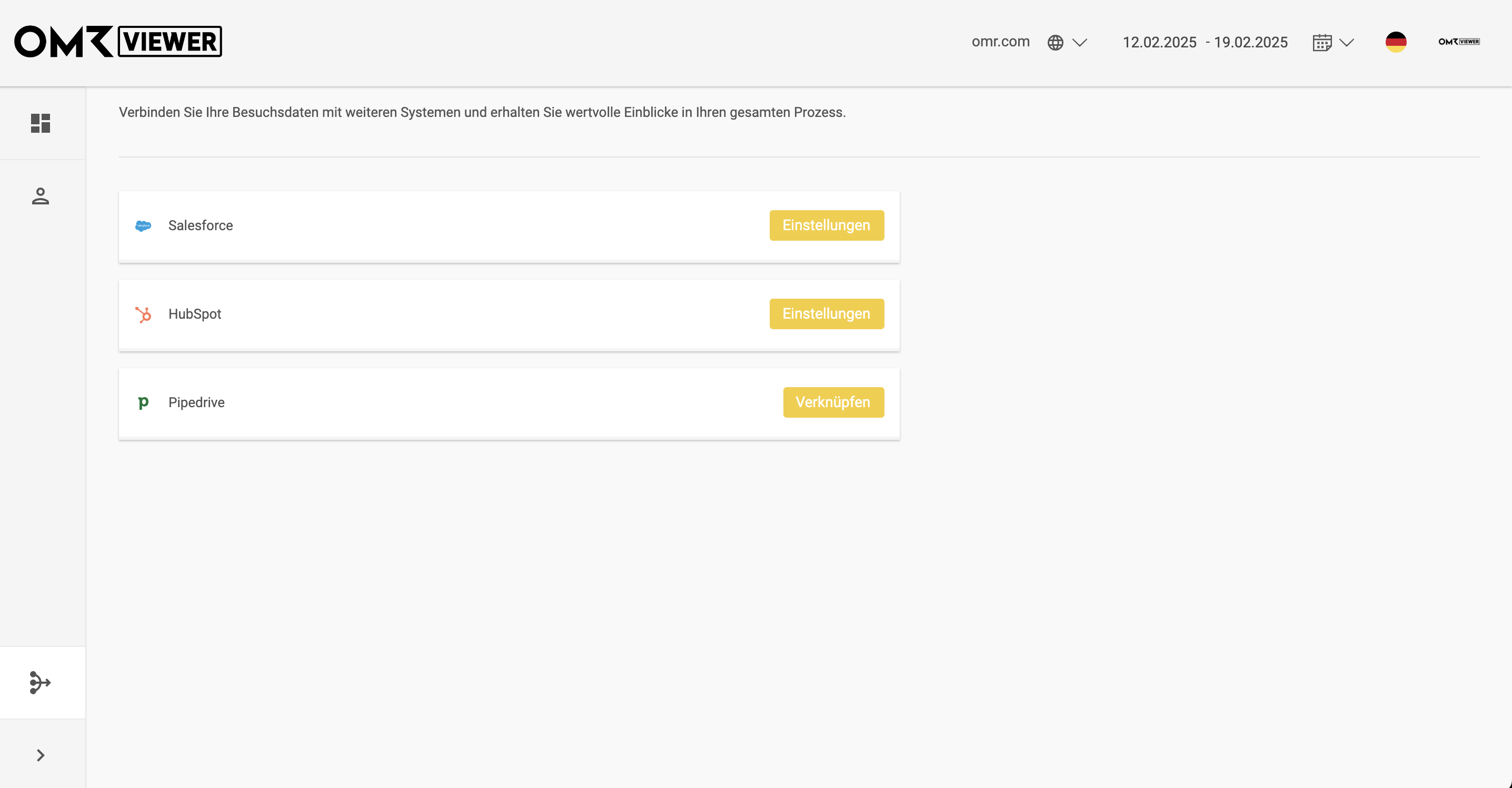
With a direct connection, you can seamlessly transfer the data from OMRviewer to Salesforce, HubSpot, and Pipedrive. This way, you integrate buyer intent insights directly into your existing processes and use them strategically for your sales and marketing activities.
Learn in our tutorial how to set up the integration with your CRM quickly and easily.
 Powered by happysupport.ai