
Guide: Integrating OMRviewer Data Into Your Tool Stack
Connect OMRviewer company visit data to your CRM and activation workflows using Clay via Zapier or direct CSV import for ABM campaigns.
Three integration paths at a glance and the complete 5-step setup for the middleware option with Clay via Zapier
OMRviewer decodes anonymous company visits on OMR Reviews. So you can actively use these signals, they need to flow into your tool setup, into your CRM, into enrichment tools, or directly into activation workflows like LinkedIn ABM. This article shows you the three possible paths and walks you step-by-step through the setup for the most flexible option: OMRviewer in Clay via Zapier.
GDPR Note:
The identification of company visits takes place exclusively at the company level and not on a personal basis. Current data protection guidelines and GDPR requirements are taken into account.
Here's what you'll find in this article 👇:
-
What OMRviewer tracks and what you can do with it
-
The three ways to integrate OMRviewer data
-
Connecting OMRviewer with Clay: 5-step setup via Zapier
-
Alternative: CSV import without automation
-
Your data foundation is now in place
What OMRviewer tracks and what you can do with it
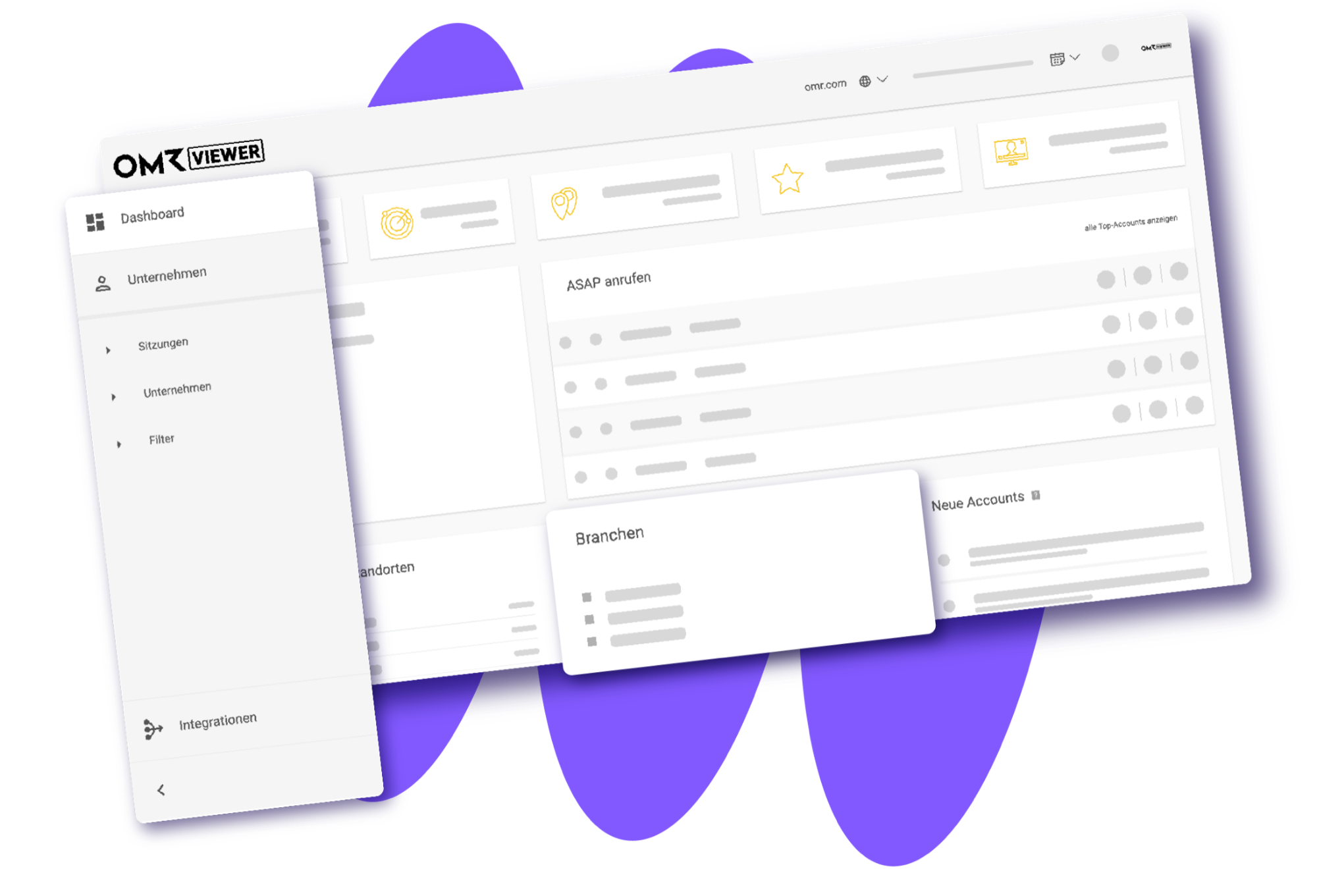
OMRviewer decodes anonymous company visits on OMR Reviews. It recognizes four types of page views:
- Your product profile: Companies are searching for you directly or evaluating you.
- Competitor profiles: Companies are checking out your competitors. Just as relevant because they're actively in the market.
- ContentHub: Companies are reading topic-relevant content on OMR Reviews.
- Category pages: Companies are browsing your software category. Classic early-stage signal.
The result is a list of companies showing active purchase intent at the time of export. This list is exactly the foundation for everything that comes next.
👉 Learn more about "What is buyer intent data?"
The three ways to integrate OMRviewer data
You have three options for processing OMRviewer data further. Which one works best depends on your setup.
Option 1: Direct CRM integration via OMRviewer
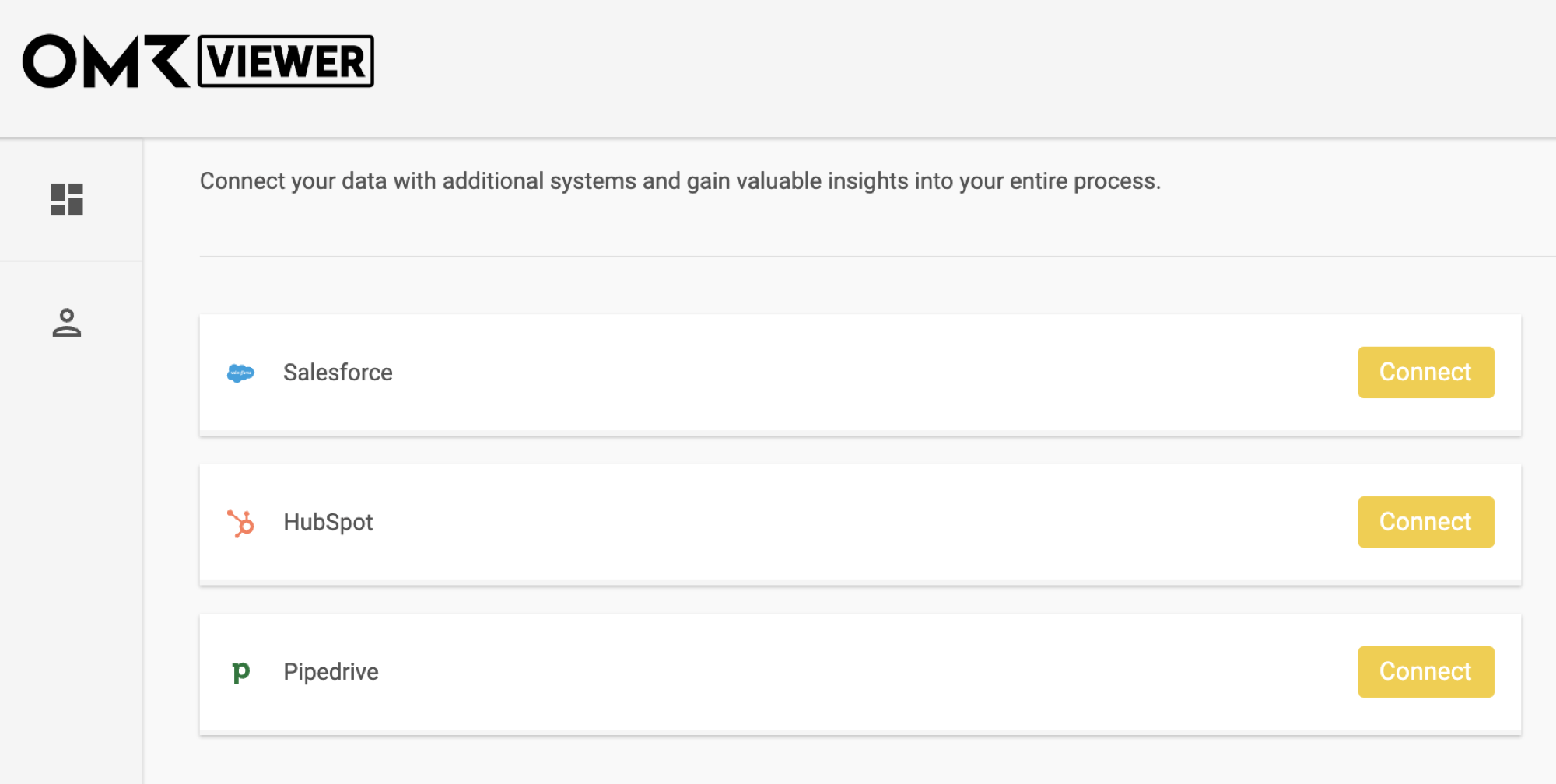
The simplest way. You log into OMRviewer, go to Integrations, and connect it directly with your CRM: HubSpot, Salesforce, or Pipedrive. New company visitors then automatically land in your CRM.
Option 2: Native CRM integration via API key
Ask your Customer Success Manager for the OMRviewer API key and set up a native connection to your CRM with it. This gives you more control over field mappings and automation logic.
Option 3: Middleware for enrichment, scoring, and activation
For anything beyond simple data transfer, you need a middleware layer. Middleware tools like Zapier, Make, n8n, or Clay enrich raw data, qualify it, and activate it directly for campaigns. This is the path you take if you want to set up LinkedIn ABM.
For this you need the OMRviewer API key or a manual CSV export. The rest of this article describes this third option using Clay as an example.
👉 Learn more about "CRM Integration"
Please note that the API key is available starting with the Professional plan.
Connecting OMRviewer with Clay: 5-step setup via Zapier
Clay is a data enrichment and lead intelligence tool. It combines company and contact data from over 150 sources in a table interface. Via Zapier, you connect OMRviewer and Clay completely automatically: new profile visitors land directly in your Clay table.
Step 1: Connect OMRviewer as a trigger in Zapier
- Create a new Zap in Zapier. Select Webhooks by Zapier as the trigger and search for Salesviewer (only available for paid Zapier subscriptions).
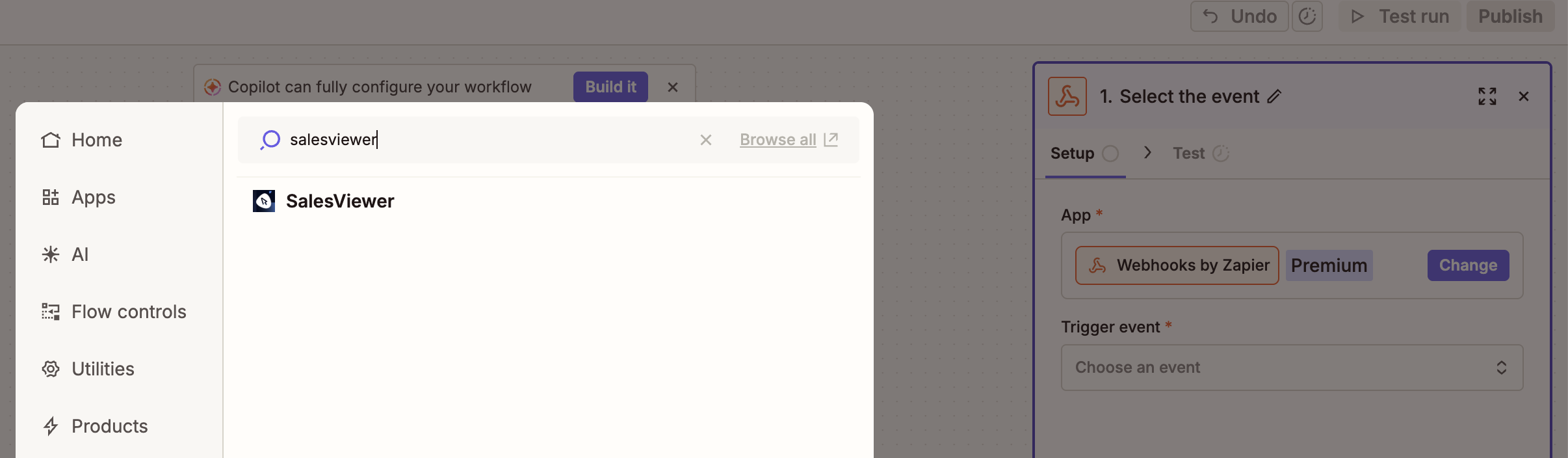
The Zapier trigger is called "Salesviewer" because OMRviewer is built on Salesviewer technology.
- Choose a trigger event. Each event has different signal strength and fits a different use case:
- Intensive Visits - fires when a company has spent at least 30 seconds on your page. Strong engagement signal, good for sales handoffs or retargeting audiences.
- New Visits - fires for every detected visit. Broadest trigger option, makes sense if you want to enrich the full data volume in Clay and filter there.
- Returning Visitors - fires when a company visits more than once. Classic purchase intent signal for mid-funnel engagement.
- Visits from Favourite Companies - fires only for companies you've marked as favorites in OMRviewer. Perfect for a high-priority ABM target list.
- Visits from New Companies - fires when a company is identified as a lead for the first time. Ideal trigger for SDR handoff of net-new accounts.
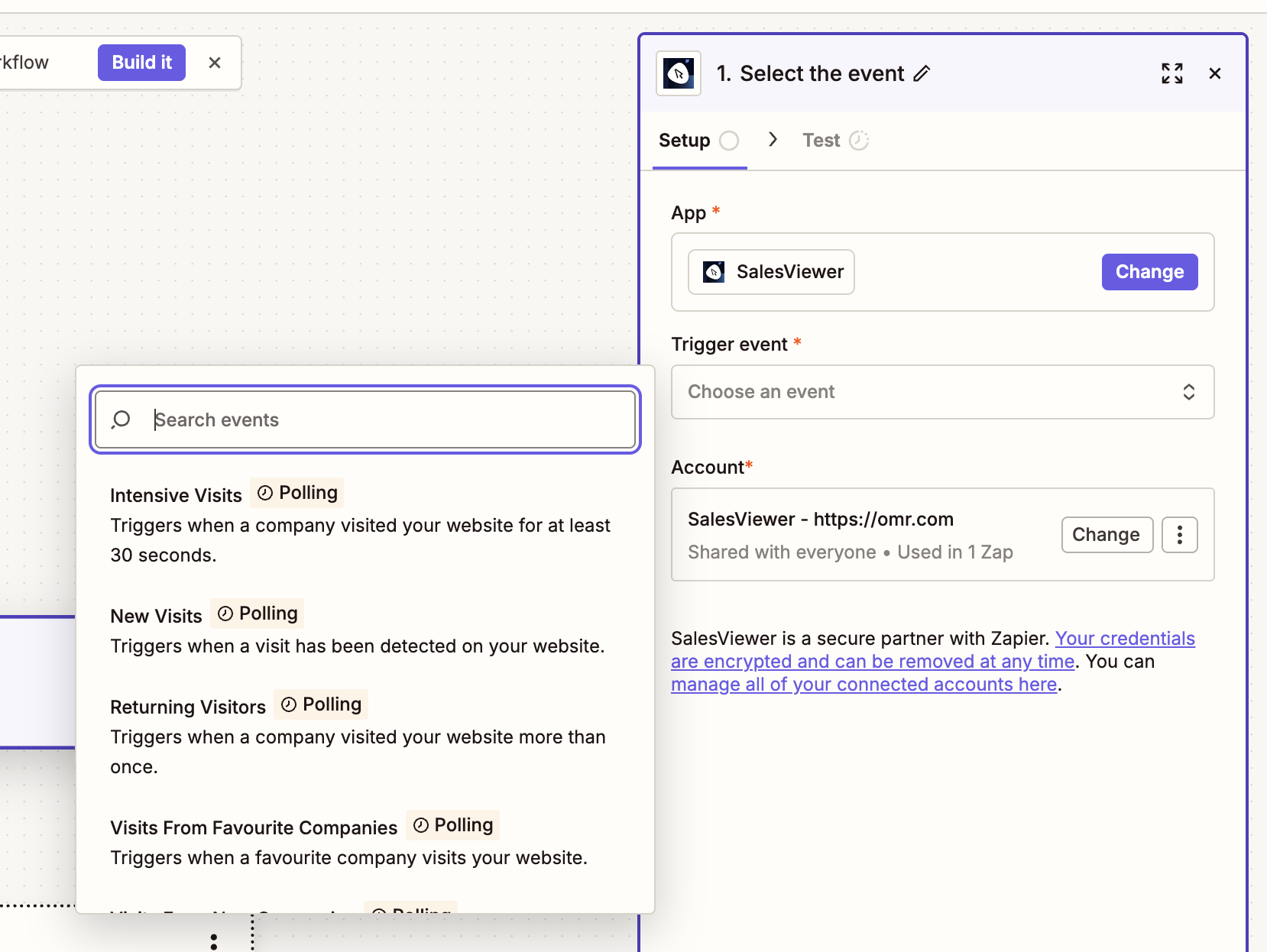
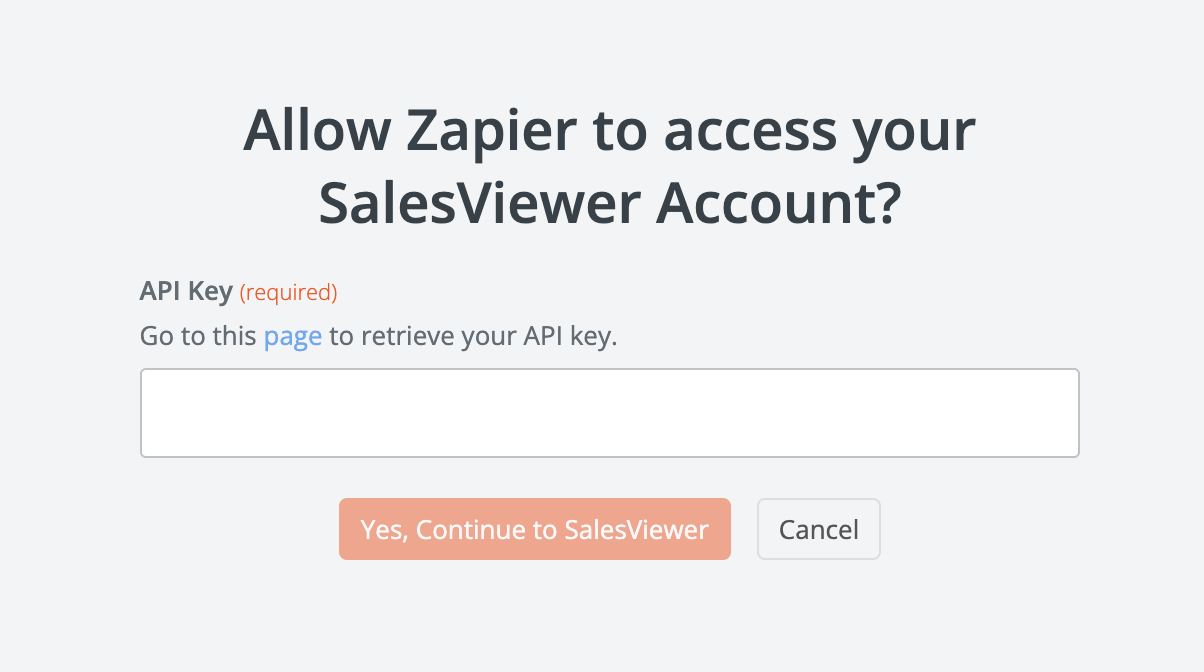
- Connect your account by entering your API key. You get the key from your Customer Success Manager.
Step 2: Set Clay as action
- Create a new table in Clay with the following columns: Company, Industry, Country, Event Type, Visited URL, Timestamp.
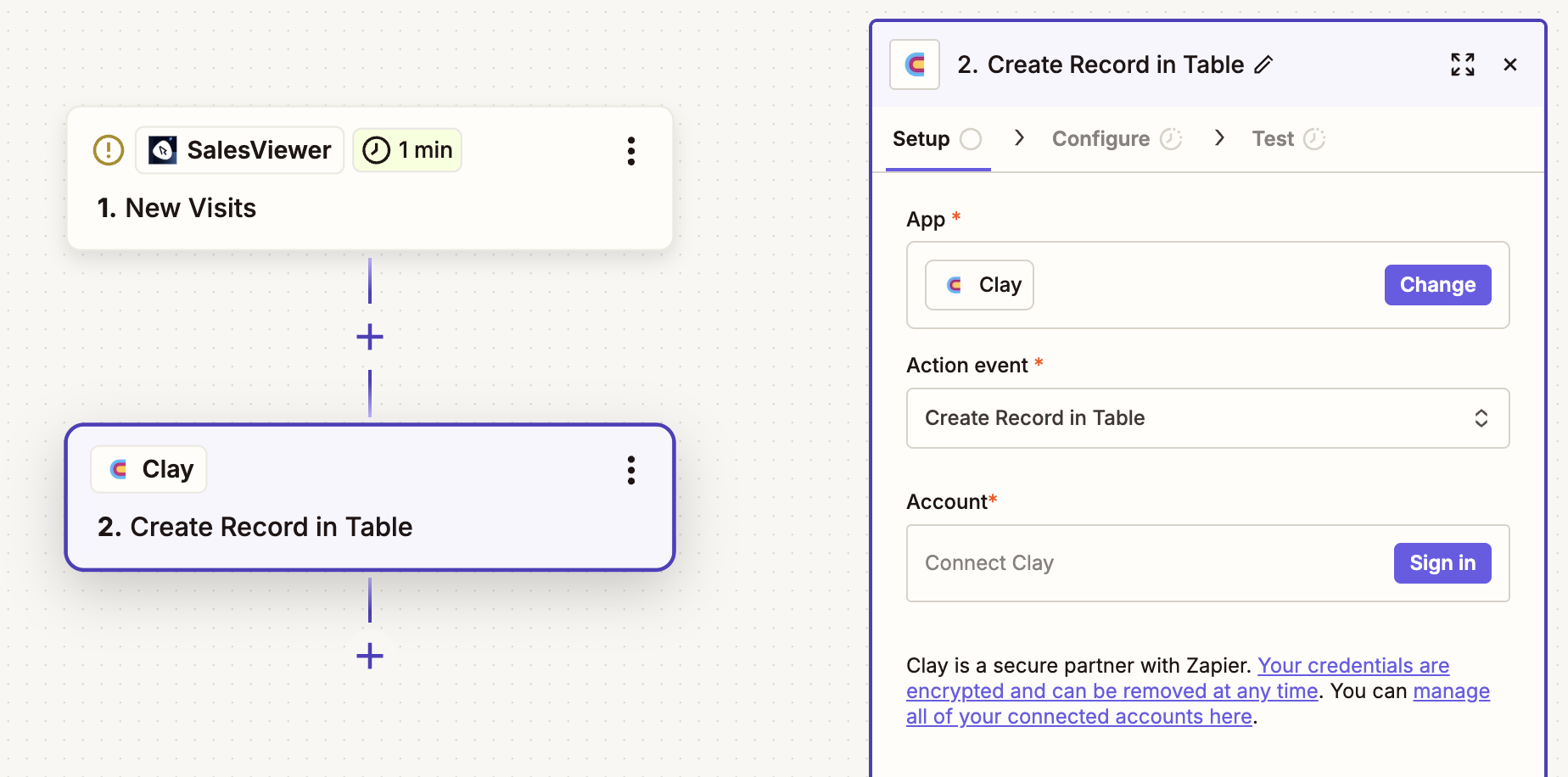
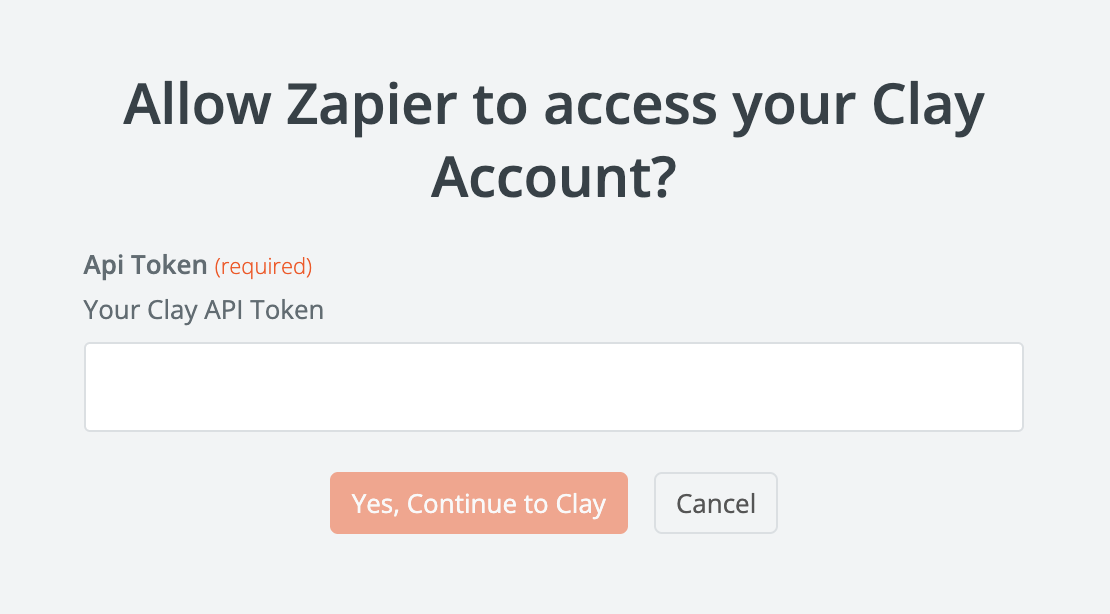
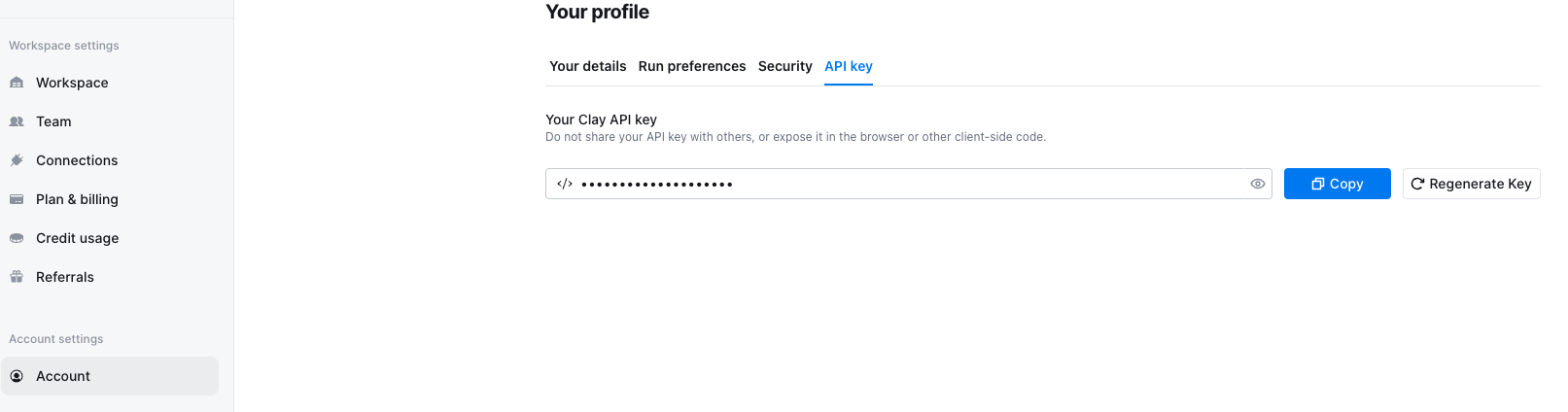
- Select Clay as the action in Zapier and "Create Record in Table" or "Update Record in Table" as the action. Enter your Clay API key. You can find it in Clay under Account Settings → API Key.
Step 3: Map fields
Assign the Salesviewer data fields to the columns in your Clay table:
- Company → "Company"
- Industry → "Industry"
- Country → "Country"
Additionally helpful: map event type, visited URL, and timestamp so you can filter by signal strength in Clay.
Step 4: Activate the Zap
Turn the Zap on. Zapier now checks for new data every minute and writes it directly to Clay.
Step 5: Auto-sync is running
From now on, your Clay table fills automatically. Every newly detected company lands there and you can process it further: enrich contact data, score by ICP fit, segment lists.
Common errors and quick solutions
Many typical errors can be identified during the trigger setup or field mapping and fixed within minutes.
"Zap isn't firing"
→ First check that the correct trigger event is selected in Zapier. It also helps to trigger a test visit in OMRviewer to manually test the workflow.
"Columns in Clay remain empty"
→ In most cases this is due to field name mapping. Check whether the data fields passed are correctly assigned to the Clay columns.
"Duplicate entries in Clay"
→ Set the action in Clay to "Update Record" and use the company name ("Company") as the match key. This updates existing records instead of creating new ones.
Alternative: CSV import without automation
You want to test before setting up automation? You can do that without Zapier.
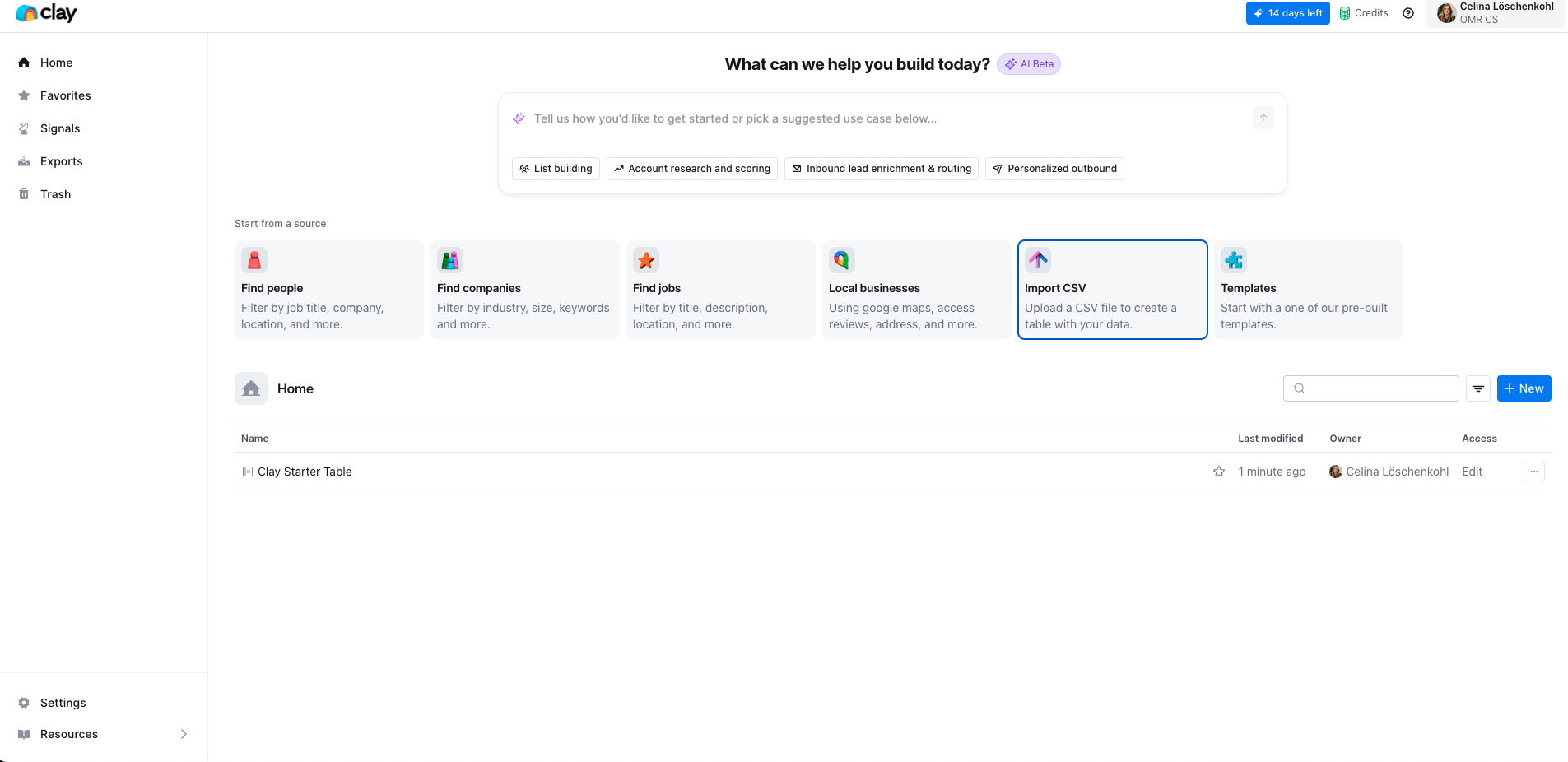
Export a company CSV in OMRviewer. Open Clay, click on "Import CSV" and upload the file. The fastest way for a one-time test and a good entry point before you set up the automated workflow.
Your data foundation is now in place
Company visits from OMR Reviews now flow automatically into your Clay table (or into your CRM if you chose option 1 or 2). You can enrich the data, score by ICP fit, segment it, and pass it on to all downstream tools, from sales engagement to marketing automation through to paid campaigns.
The next logical step is activation: rolling out targeted LinkedIn ABM campaigns based on qualified accounts. The complete workflow from custom audience to dedicated landing page is in the follow-up article.
👉 Best Practice: From Intent Signal to LinkedIn Campaign
 Powered by happysupport.ai